How to Edit Fasting Times in Atomic Fast
Forgot to start or stop your fasting timer? Correct an active fast, edit a saved session, or record a missing fast in Atomic Fast on iPhone and Android.
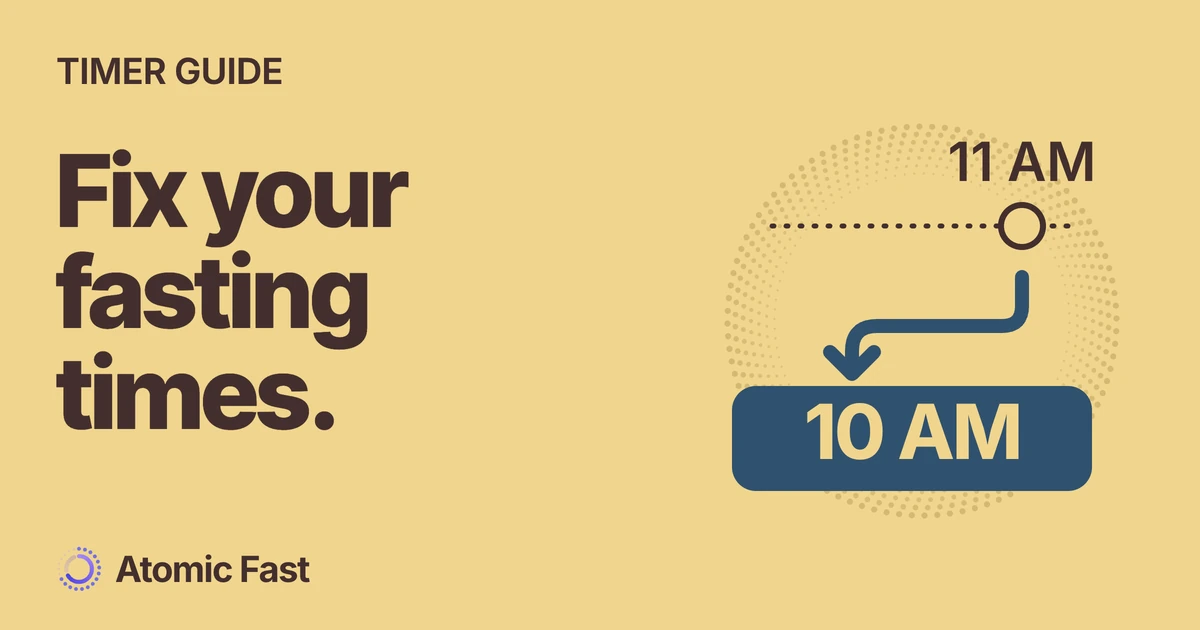
You broke your fast at ten, but your fasting timer kept running until eleven. Now the saved record includes an hour that wasn’t part of your fast. You can correct that record without deleting it and starting again.
The right control depends on whether the timer is still running, the session is already saved, or there is no record at all.
The short version
For a running fast, tap Started on Today to open Edit Schedule, adjust Start Time, and tap Save. For a completed fast, open its Edit Fast sheet, correct Started or Ended, and tap Save Changes. If you never recorded the session, choose its end date in Today’s calendar and use Record Fast. Check the full date as well as the time, and resolve any overlapping record before saving.
Choose the right editor
Which record needs fixing?
Still running
Correct the start
Today → Started
Edit Schedule → Save
Already saved
Correct either endpoint
Latest Fast body, or a session in history
Edit Fast → Save Changes
No record
Add the missing session
Today calendar → end date → Record Fast
Set both times → Save Changes
Before you change a time
These controls are part of the free fasting timer on iPhone and Android. Start from an app where you’ve completed sign-in and setup. Editing a timestamp doesn’t require an AI scan or a new camera or health-data permission.
This guide uses the English labels. On iPhone, dates and times use the compact system picker. Android separates date and time controls and asks you to confirm the picker with OK. Your phone’s time format may show 20:30 where the examples below say 8:30 PM.
Find the existing session before creating anything. The Latest Fast card on Today has two destinations: its body opens the most recent completed fast for editing; its header or chevron opens session history. For an older record, open that history and select the session you need. The first-fast guide explains the original start, finish and save flow.
Correct the start of a running fast
Use this when the timer exists and is still running, but you pressed Start Fast later or earlier than you meant to.
- Open Today and tap Started. The small card showing the session’s start date and time opens Edit Schedule.
- Change Start Time to the actual start. Check the calendar date first, then the hour and minutes. If the fast began yesterday evening, selecting today’s evening would put the start in the future.
- Review the goal without changing it unnecessarily. For a timed goal, the displayed Goal End is calculated from the start plus the goal duration. Moving the start also moves that projected time. It is not a saved completion time.
- Tap Save. Back on Today, check the start label and elapsed counter. The existing session continues from the corrected start.
For example, suppose you started at 8:30 PM but only opened the timer at 9 PM. Moving Start Time back by 30 minutes adds those 30 minutes to its elapsed count. It doesn’t create a second session or record an end time.
The editor can also place a start in the future. That is scheduling, so check for an accidental wrong date if you expected an elapsed timer. The start-options guide explains one-time scheduling and Since Last Meal separately.
Correct a completed fast
A saved session has both endpoints. This is also the route to use when an older fast has the wrong calendar date.
- Open the saved session. Tap the body of Latest Fast, or open history through its header and select an older session. Confirm you’re editing the intended record.
- Adjust Started if the beginning is wrong. Leave it unchanged when only the finish needs correction. On Android, confirm the date and time pickers separately.
- Adjust Ended to the actual finish. Check the date, AM or PM, and minutes. The end should follow the start and represent something that already happened.
- Read the resulting duration. The editor recalculates it from the two timestamps. On Android, moving the start past the existing end shifts the end forward to keep the interval positive, so check Ended again after a start correction.
- Tap Save Changes, then check the record. Reopen the session and confirm both endpoints. Optional details and the goal are separate fields; you don’t need to change them to correct a time.
On iPhone, Save Changes stays unavailable when nothing has changed. Both platforms block a save that overlaps another recorded fast. The troubleshooting section below explains how to check that warning.
An overnight example
Imagine a fast began at 8:30 PM on October 14 and ended at 10 AM on October 15. You tapped End Fast at 11 AM and saved without adjusting it. The saved interval is 14 hours 30 minutes; changing the end to 10 AM makes it 13 hours 30 minutes.
Keep the start on October 14 and the end on October 15. Choosing the same date for both would describe a different interval. These are example timestamps for editing practice, not a suggested fasting duration.
Illustrative overnight example
Same start. Correct finish.
Both records begin at 8:30 PM on October 14. Only the end changes.
Saved by mistake
14h 30m
Ends 11 AM · Oct 15
After correction
13h 30m
Ends 10 AM · Oct 15
Forgot to stop a timer that’s still running?
Tap End Fast and review When did you break your fast? before using Save & Close or Save Without Details. Merely opening that sheet is not the final save action.
If you need to correct an earlier calendar date and can’t select it in that completion control, save the session, then use Edit Fast to set both dates and times. Reopen the saved record afterward to confirm the correction. Avoid creating a separate Record Fast entry while the original session still covers the same period.
A meal log is a separate record. Saving food doesn’t universally stop or correct a timer: meal-entry routes differ, and some offer an explicit Break Fast & Log choice. If the meal and fast disagree, review the fast’s own Ended field. The meal-logging guide explains those choices.
Record a fast that is missing entirely
Use Record Fast only when there is no existing session to correct.
- Open the calendar on Today. Select the day the fast ended. A session spanning midnight belongs to its end date in the daily view.
- Choose Record Fast. This opens an editor with suggested starting values. They are defaults, not a reconstruction of what happened.
- Replace Started and Ended with the dates and times you intended to record. Review the resulting duration and goal before saving. Check for a matching session already in history if an overlap warning appears.
- Tap Save Changes. Return to that date and check the saved session. If you opened the editor by mistake, use Cancel instead.
If the result still looks wrong
An overlap warning appears. Another session already occupies some of that interval. Check the warning and your history for the actual conflicting record. Correct whichever timestamp is wrong. If both entries describe the same fast, keep the accurate record; don’t shorten a real interval merely to make an extra record fit.
The duration is unexpectedly long or short. Recheck the calendar dates and AM/PM before adjusting the goal. A goal doesn’t determine how much time was recorded; the endpoints do. On Android, recheck the end after moving the start.
The session appears on a different day. Completed fasting hours are credited to the local day the session ended. Changing an end date can therefore move the record’s daily attribution. Look on the corrected end date before assuming the session was lost.
You only wanted to leave the editor. Use Cancel. Delete This Fast is a separate destructive action with a confirmation; it is unnecessary for a normal timing correction.
Frequently asked questions
Can I change the start after a fast has begun? Yes. On Today, tap Started, change Start Time in Edit Schedule, and tap Save. The existing session continues with that start time.
Can I fix yesterday’s end time? Yes. Open the completed session in history, change Ended, and use Save Changes. Check the date as well as the clock time, especially for an overnight fast.
Does editing require Atomic+? No. The fasting timer’s start-time and completed-session editing flows are available without a subscription. They don’t use the AI scan allowance.
Should I use Record Fast when a session already exists? Edit the existing session. Record Fast is for a completed fast that is missing entirely; creating another entry for the same interval can trigger an overlap warning.
Will changing the goal fix an incorrect duration? No. The duration comes from the recorded start and end. Change the incorrect timestamp, then review the result; the goal is a separate value.
Sources and product notes
Product information checked: October 16, 2026.
Product verification: We checked the iPhone and Android timer, schedule editor, completed-session editor, calendar recording flow, save actions and overlap checks against current app code and product documentation. The guide uses those implemented controls and repository release notes for end-date attribution. No device walkthrough was performed. The timelines are illustrative arithmetic, not app screenshots, measured health data or fasting recommendations.
Keep your fasting records in Atomic Fast: download for iPhone or get it on Android.
Try Atomic Fast free
Track your fasts, log your meals, and see how they affect each other, on iPhone and Android.


 Scan to download