Save and Reuse Meals in Atomic Fast
Save a familiar meal in Atomic Fast, find it in My Meals, check the portions and log it again. Follow the iPhone and Android steps without taking another food photo.
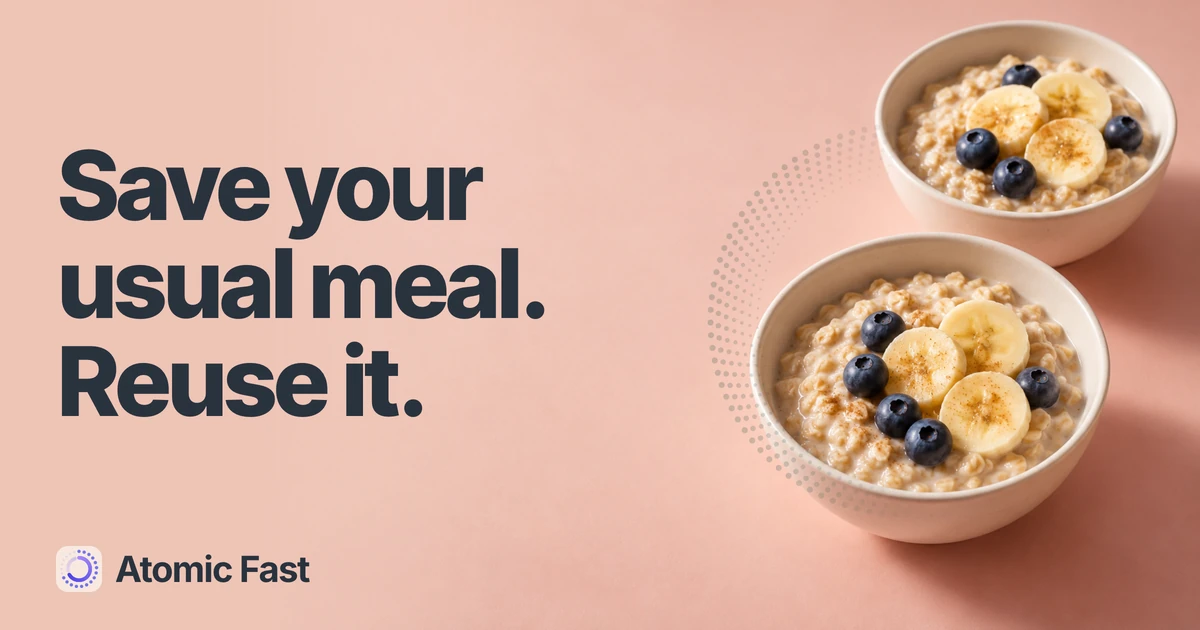
You eat the same breakfast often enough to know the ingredients by heart. Entering those foods again is the tedious part. Atomic Fast’s My Meals keeps a combination you can bring back into the meal builder, then adjust for what you ate this time.
The short version
Open a logged meal and choose Save as My Meal from its menu. Later, open My Meals and tap the + beside that combination to add its foods to a new meal. Review every portion and Meal Time, then tap Done to record it. Check amounts especially carefully on iPhone, where a matching database food can load its default serving instead of the previously saved quantity.
Start with a meal you’ve already checked
You need to be signed in, through onboarding and able to open your meal history. Choose a logged meal whose items look right. If you haven’t logged one yet, follow the guide to choosing a logging method and saving your first meal.
A useful saved combination might be your usual bowl of oats, banana and yogurt. It doesn’t have to represent every breakfast you will ever eat. If today’s bowl is different, you can change the new entry before saving it.
This guide uses the English control names on iPhone and Android. The saved-meal route itself doesn’t take a new photo, send a typed meal description for analysis or consume an AI scan. Using a separate AI tool is a different action with its own limits.
Save the combination once
- Open Meals, find the day containing the meal and open its details.
- Read the items and amounts. If they need correction, use the details menu’s Edit Meal Items, make the changes and finish with Save Changes before creating your reusable version.
- Open the meal’s menu again and choose Save as My Meal. The app stores a reusable combination based on that meal’s foods.
The similarly named Save as My Food has a different purpose: it combines the meal into a reusable food entry. Choose Save as My Meal when you want the component foods available separately for review.
Saving a combination doesn’t add another breakfast to your daily log. The original meal remains your record of an eating occasion; My Meals holds something you can use for another occasion later.
From a familiar meal to a new log
Save the combination.
Review each occasion.
-
Keep a combination
Save as My Meal
Store the foods from a meal you already logged.
-
Build a new entry
My Meals → +
Add its foods, then review amounts and Meal Time.
-
Record this meal
Done
Save a separate entry for the selected day and time.
Saving a combination alone adds no new eating occasion to your daily log.
Bring it into a new meal
- Open Log. On iPhone, expand the Log Food & Water sheet to reveal My Meals. On Android, tap More options, then My Meals. If you’re already in food search, select the My Meals tab.
- Find the combination you saved and tap the + at the right of its row. Tapping the meal’s name or row opens the saved combination for editing instead; that isn’t the add action.
- Review the foods now shown in the meal builder. Use the serving controls to adjust each amount. Remove an item you didn’t eat, or use Add More for something extra.
- Check Meal Time and the logging day. Finish with Done when the new entry matches the meal you want to record.
The add action appends ingredients to the builder. If you’ve already added foods, those stay there. Returning to My Meals and tapping + again can add another set, so inspect the list before you finish.
This is a review-and-save flow. Finding a combination in My Meals, opening its editor or adding it to the builder isn’t the final log. Done is the last save action for a new meal in this route.
Why the amounts deserve a second look
The two apps rebuild saved combinations differently.
On Android, the builder copies the stored food items and their quantities. Those can still need changing if today’s portion differs from the meal you originally saved.
On iPhone, an item whose name matches a food in the local database can be rebuilt from that database food’s default serving and nutrition values. If there is no matching food, the app uses the saved item’s values. This means the builder’s amounts and totals can differ from the saved combination even before you adjust anything.
Use the amount shown beside each food as your starting point. A multiplier of 1 means one of the servings currently loaded in the builder; it doesn’t guarantee one of your usual portions. Changing the multiplier updates that item’s amount and estimated nutrition. Check the actual displayed amount rather than relying on the multiplier alone.
Before you tap Done
Check the amount
that actually loaded.
iPhone
A database match can change the starting portion.
If a food name matches, its database default can load. Otherwise, the saved item is used.
Android
Stored quantities are copied into the builder.
Those amounts still need checking against what you ate on this occasion.
On both platforms
Review each food's displayed amount and unit. Adjust it for this meal, check the time, then save.
1×One currently loaded serving.
Not necessarily your usual portion.
For example, suppose a saved breakfast includes oats, banana and yogurt. Today you had less yogurt and no banana. Add the combination once, remove the banana and adjust the yogurt from the amount currently displayed. Review the oats too, especially on iPhone. This is an example of editing a record, not a suggested breakfast or portion target.
Those changes apply to the new meal you’re building. They don’t rewrite the ingredient list in your saved combination or alter the original logged breakfast. If you want to change the reusable version itself, open its row in My Meals to edit it separately.
Check the time before finishing
A familiar name doesn’t mean a familiar timestamp. For a new entry today, the builder starts with a current time. When you enter the logging flow for a past day, the initial time can be noon. Replace that default with the time you’re trying to record.
If you have an active fast, a meal for today at or after that fast’s start can trigger You’re currently fasting. Read the choice before continuing:
- Log Meal Anyway records the meal and leaves the fast active.
- Break Fast & Log records the meal and ends the active fast at the current time. It doesn’t backdate the fast’s end to the meal time you selected.
- Cancel backs out of that action so you can reconsider or correct the entry.
If you’re recording something you ate earlier and need to correct the session too, use the separate guide to editing a fast’s start and end times. Choosing a saved meal doesn’t resolve a mistaken fasting record for you.
Confirm the result and fix common mix-ups
After completing the save flow, return to Meals on the day you logged. Open the new record and check its items, totals and time. Your saved combination should also remain available in My Meals for another use.
The list is empty: logging a meal alone doesn’t create a reusable combination. Open that meal’s details and use Save as My Meal, then return to My Meals. Also check that you haven’t opened My Foods, which contains reusable foods rather than meal combinations.
Tapping a meal opens an editor: that’s the row action. Return to the list and use the + on the right when you want to add its foods to a new log.
The builder contains everything twice: remove the extra items before tapping Done. The plus action adds to the list; it doesn’t replace what is already there.
The new log has the wrong amount or time: open its details and use Edit Meal Items or Edit Meal Time. Correct the existing record rather than creating another copy to compensate.
FAQ
Can I save a meal that was originally entered without a photo? Yes. Save as My Meal is available from meal details and stores the combination’s foods. A photo isn’t required for this route.
Can I reuse just part of a saved combination? Yes. Add it to the builder, remove the items you didn’t eat and review the remaining amounts before finishing. You can also use Add More to include another food.
Does changing this entry update my saved combination? No. Adjusting the new builder items changes the meal you’re about to log. Open the saved combination’s own row in My Meals when you want to edit that reusable version.
Why can the calorie total change when I add a saved meal? On iPhone, a matching database food can supply its default serving and nutrition values. Your own portion edits also change the total. Compare the item amounts first; a saved name isn’t a guarantee of identical nutrition.
Will My Meals schedule tomorrow’s breakfast for me? No. It stores combinations for you to select. You still choose the logging occasion, review the foods and complete the save yourself.
Sources and product notes
Product information checked: October 18, 2026.
Product verification: We traced the meal-details save actions, My Meals entry points, ingredient copying, serving controls, timestamp handling and final save in the current iPhone and Android code and meal-logging documentation. The iPhone database-match behavior and Android stored-quantity behavior were checked separately. This was source verification, not a device walkthrough or a clinical evaluation. Detailed evidence is retained in the editorial review record. Reusing food entries doesn’t independently verify their nutrition estimates.
Keep your usual combinations ready in Atomic Fast: download on the App Store or get it on Google Play.
Try Atomic Fast free
Track your fasts, log your meals, and see how they affect each other, on iPhone and Android.


 Scan to download