Check an AI Meal Scan Before Saving in Atomic Fast
Review an AI meal scan in Atomic Fast before saving. Fix food names, adjust portions and learn which corrections use another scan on iPhone and Android.
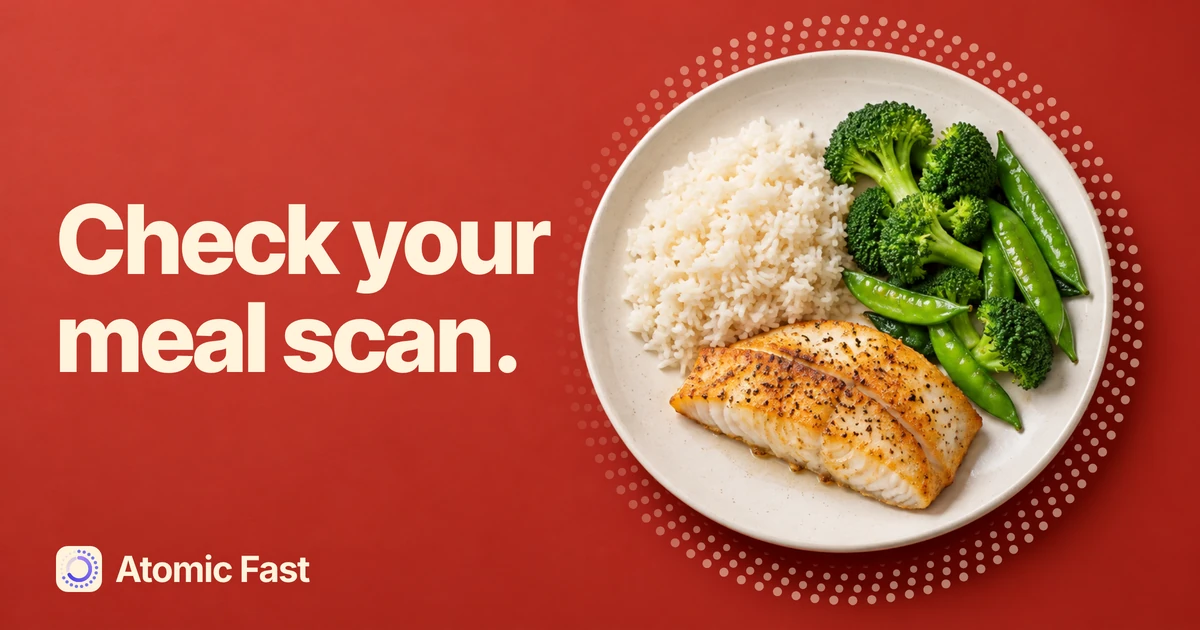
The scan says chicken. Your plate has fish. Or the food looks right, but the serving is much larger than the amount you ate. Both can be corrected before the meal becomes a saved entry, but they call for different controls.
The short version
Check the identified foods before adjusting their portions. Tap a food row to change its serving, remove an unwanted item, or use Add More Items for something missing. Fix Issue asks AI to reconsider the result and can consume another scan; ordinary serving edits do not. Check the whole list again after an AI correction, then confirm Meal Time and tap Log Meal. The saved numbers are still estimates.
Start with a result you can check
This guide covers a plate photographed with Scan Food or selected through Upload Photo. Complete sign-in and setup first, and have an internet connection for analysis. Camera scanning needs camera permission. The instructions use English labels; translated wording can differ.
If you haven’t reached the result yet, open Log on iPhone or the Log / plus control on Android. Choose Scan Food, or reveal the additional options for Upload Photo. On iPhone, expand the sheet upward; on Android, tap More options. For the broader choice between photos, descriptions and database entry, see the routes for recording a first meal.
The review is easier when you know what was on the plate. Look at the food names and listed amounts individually. A plausible meal title or calorie total does not establish that every ingredient was recognized correctly.
Review and correct the result
-
Check which foods were identified. Compare each listed item with what you ate. Watch for a missing side, a duplicate item or food from someone else’s plate. Changing the overall meal name does not change the foods or their nutrition estimates.
-
Resolve recognition mistakes. You can remove the incorrect item with its remove control and use Add More Items to find a suitable replacement. Alternatively, tap Fix Issue, explain the mistake and tap Update. The correction sheet is called Fix Result on iPhone and Fix Detection on Android. A specific correction such as “The fillet is white fish; there is no chicken” gives the request useful context. It does not guarantee the next answer will be right.
-
Read the returned list again. AI correction can change foods and portions beyond the one item you mentioned. On iPhone, separately added foods are retained alongside the refreshed AI items. On Android, a successful correction replaces the current list with the returned foods, including any additions it incorporates. Check for omissions and duplicates on either platform. Make your final manual changes after this step.
-
Adjust each serving. Tap a food row to expand Serving. The minus and plus controls change the amount in 10-gram steps, with a minimum of 10 grams. iPhone can display a converted unit according to your preference; Android’s confirmation control displays grams. Calories and the main macro totals recalculate from the food’s existing estimate. If an item should not be in the meal at all, remove it instead of reducing it to the minimum.
-
Finish the list and save. Use Add More Items for a missing food, then check the amount it adds. Review the complete list, total and Meal Time before tapping Log Meal. Wait for the result, then return to Meals on the selected day and open the entry. That saved record is the confirmation that logging finished.
Before you save
Choose the correction that fits.
Manual edit
Change the entry yourself
- Adjust a serving with − / +.
- Remove an unwanted food.
- Add an ordinary database result.
No new AI request
AI correction
Ask for another analysis
- Open Fix Issue.
- Describe the recognition mistake.
- Tap Update and review the full result.
Uses a scan when successful
After AI correction, check every food and amount. Then make final manual edits.
A serving edit changes the amount, not the food
Suppose a scan lists a food at 200 grams, and you have a better basis for recording 150 grams. This is an illustrative example, not a suggested portion. Expand the row and tap minus five times. Each tap removes 10 grams, taking the displayed amount from 200 to 150 grams.
The new quantity is 75% of the starting quantity. The app recalculates calories and macros using the same underlying food estimate, subject to rounding. It has not identified the food again. If the item was mistaken for chicken in the first place, reducing its serving still leaves you with an estimate for the wrong food.
Use information you can check, such as a weighed portion or a package’s stated serving, when available. The plus and minus controls cannot establish what was in a mixed dish, how it was cooked or whether an unseen ingredient was included. Avoid adjusting a portion just to make the total look like a number you expected.
Illustrative example · grams
A smaller amount.
The same food estimate.
Initial estimate200 g
After your edit150 g
150 g is 75% of 200 g. Calories and macros recalculate from the existing estimate, with rounding.
A serving edit does not identify the food again.
What uses another AI scan?
The free allowance is seven successful AI requests per week, shared across photo analysis, nutrition-label scans, typed descriptions and AI-generated food search. Fix Issue is another AI request. Atomic+ subscribers have unlimited AI scans. The free allowance resets on Monday at midnight in your local time.
A successful response counts before you save the meal. Closing the result or deciding not to log it does not return that scan. By contrast, changing a serving or removing a row does not ask AI to analyze anything again. Adding an ordinary database result also avoids an AI request; search’s Generate results using AI option does not.
If you reach the limit, use the manual controls available in your result. You can also use ordinary food search or create a food entry from information you can verify. Repeatedly pressing Fix Issue is not a way around the allowance, and a paid plan does not make the estimates exact.
Check the record before repeating the scan
If a correction fails, it hasn’t necessarily erased the original result. Check the list and any error message before retrying. If the app asks you to sign in again, follow that prompt; repeated analysis attempts won’t repair an expired session.
After saving, look under the day selected in Meals. If the record is there, open its menu for Edit Meal Items or Edit Meal Time instead of scanning the same meal again and creating a second entry. Once a combination is useful, you can save it for a later meal and review its portions when reusing it.
If you are logging while a fast is active, read any fasting warning. Log Meal Anyway saves without ending the fast. Break Fast & Log ends it at the current time, which may differ from the meal time you selected. Check that record separately when entering a meal retrospectively.
What leaves your device
Photo analysis sends the image through our server to Google’s Gemini API. A photo correction sends the image again, along with the previous detection and your correction text. Include only information needed to describe the food. These are external AI requests, even though your core meal records are stored locally. The privacy policy explains the processing and the app’s other external services.
Frequently asked questions
Does changing a portion use another AI scan? No. The serving controls recalculate from the existing food estimate. Fix Issue requests new AI analysis and counts toward the free allowance when successful.
Can I just rename the meal to fix a wrong food? Renaming the meal changes its title. Remove and replace the incorrect food, or use Fix Issue and review the returned items. Then check the portions.
Why did a correction change other items? The request reconsiders the detection. Android replaces the current list with returned foods; iPhone refreshes AI items while retaining separately added ones. Recheck the whole list before saving.
Is the percentage beside a food an accuracy guarantee? No. It is the model’s reported confidence, not an independently verified measurement of the food or its nutrition. Check the identification and serving even when the percentage is high.
Can I use the same instructions for a nutrition-label photo? The manual review controls are similar, but Fix Issue is not offered for label results on iPhone. This guide’s correction steps cover plate photos. Compare label results with the actual package and the amount you ate.
Sources and product notes
Product information checked: October 20, 2026.
Product verification: The iPhone and Android logging routes, confirmation controls, serving calculations, correction requests, save actions and AI limits were checked against current application code and documentation. This was source verification, not a mobile-device walkthrough or a validation study of food-recognition accuracy. Platform differences are stated where they affect the steps.
- Atomic Fast privacy policy: External Services — Describes food-photo and text processing through Google’s Gemini API. It does not establish nutrition accuracy.
Review and log your meals with Atomic Fast on iPhone or Android.
Try Atomic Fast free
Track your fasts, log your meals, and see how they affect each other, on iPhone and Android.


 Scan to download