Set Up Atomic Fast Widgets on iPhone and Android
Add Atomic Fast widgets to your Home Screen, enable the live fasting display, and fix missing or stale updates with clear steps for both iPhone and Android.
The short version
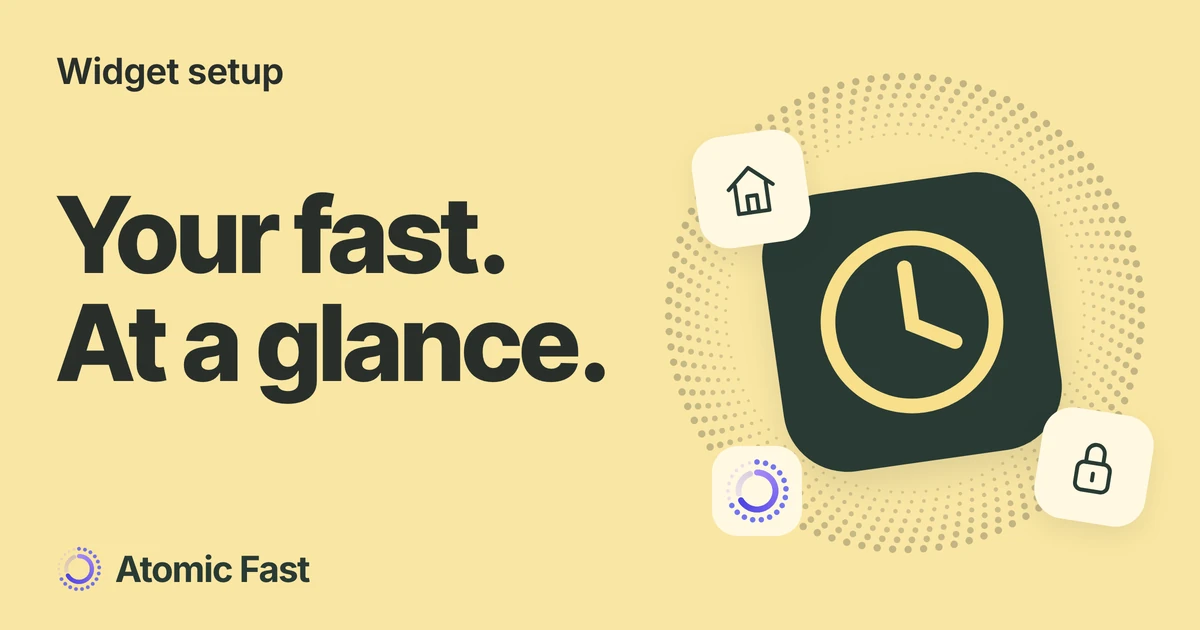
Add an Atomic Fast Home Screen widget through your phone’s widget picker. For a display during a running fast, open Me and turn on Show Live Activity on iPhone or Show Live Update on Android. Those switches control the live display; they don’t place a Home Screen widget. What appears on the Lock Screen or status bar also depends on your phone and its system settings.
Choose what you want to see
Start with the information you check most often. Atomic Fast includes Fasting Timer, Nutrition, Water Intake and Readiness Home Screen widgets. Fasting, nutrition and readiness have small and medium layouts; water has a small layout.
The timer is a useful first choice if your main question is how long your fast has been running. Nutrition summarizes logged food, while water shows recorded intake. Adding either widget doesn’t create a meal or water entry. Readiness depends on available health information; placing its widget doesn’t grant health-data permission or create missing readings.
There are two separate ways to see information on an iPhone Lock Screen: a widget you place yourself and a Live Activity associated with a running fast. Atomic Fast provides fasting and readiness Lock Screen widgets. The live fasting display is configured inside the app instead.
On Android, this guide covers Home Screen widgets and the live fasting notification. Don’t look for an iPhone-style Customize → Add Widgets path in Atomic Fast’s Android settings.
Choose your display
Placed by you.
Or shown during a fast.
iPhone + Android
Home Screen
Choose a widget in your phone’s widget picker.
Place it once
iPhone
Lock Screen widget
Add a fasting or readiness widget while customizing the Lock Screen.
Place it once
Both · different surfaces
Live fasting display
Enable the app’s live setting. A fast must actually be running.
Follows the session
A Home Screen widget and a live display can be used together.
Add a Home Screen widget on iPhone
Have Atomic Fast installed and finish its initial sign-in and setup first. Then:
- Return to your iPhone’s Home Screen and touch and hold an empty area until the apps jiggle.
- Tap Edit → Add Widget. If your version shows a + button instead, use that to open the widget picker.
- Find Atomic Fast, then choose the widget and size you want.
- Tap Add Widget, position it and tap Done.
These are the placement controls in Apple’s widget instructions. Atomic Fast’s in-app Add Widget row is guidance, not a button that installs a widget for you.
The widget should now occupy a space on your Home Screen. A fasting widget can show an idle or scheduled state; it doesn’t need a running fast merely to be placed. To start an actual session, follow the steps for choosing a goal and starting your timer.
Add a Home Screen widget on Android
- Touch and hold an empty area of your Home Screen.
- Tap Widgets and find Atomic Fast.
- Choose the widget you want. Touch and hold it, then drag it onto a free space on your Home Screen.
- Release it to place it. If your launcher offers resize handles, adjust the available space, then tap outside the widget.
Google’s Android instructions describe this general flow. Your phone’s launcher can change the labels or placement controls. Atomic Fast’s small and medium widgets appear as separate choices, with (Wide) in the name of the larger layout, such as Fasting Timer (Wide).
Try a small fasting widget first if space is tight. You can choose a different layout later. Moving a widget changes your Home Screen arrangement, not the timestamps of your fast.
Add an iPhone Lock Screen widget
Touch and hold your Lock Screen, choose Customize, select the Lock Screen if prompted, then tap Add Widgets. Find Atomic Fast and choose an available fasting or readiness layout. Finish with Done.
If the widget area is full, remove another widget to make room. You can have a Home Screen widget and a Lock Screen widget at the same time; neither requires the live-display switch to be on.
A Lock Screen widget is useful when you want a small, persistent place to check the app. A Live Activity is tied to an active session and has a different lifecycle.
Enable the display for a running fast
On iPhone
- Open Atomic Fast and go to Me.
- Under Widgets, open Widgets & Live Activity.
- Turn on Show Live Activity.
- If Live Activities Disabled appears, tap its Settings button and enable Live Activities for Atomic Fast in the system settings. Return to the app afterward.
With a fast running, the Live Activity can appear on the Lock Screen and, on supported iPhones, in the Dynamic Island. A phone without Dynamic Island hardware won’t gain one by enabling this switch.
If you turn the switch on during an existing fast and nothing appears, leave and reopen Atomic Fast so it can check the active session again. You don’t need to end the fast or create a replacement.
On Android
- Open Me → Widgets & Live Update.
- Turn on Show Live Update.
- Allow Atomic Fast notifications in your phone’s system settings if they are blocked.
- Return to the app and check the fast that is already running.
On supported Android 16 and later devices, the system may promote the notification onto the Lock Screen and into a status-bar chip. Older versions use an ongoing notification in the notification drawer. The chip is not guaranteed: user settings and manufacturer rules can affect promotion, as Android’s Live Update documentation explains.
Both platforms wait for a scheduled fast’s start before showing the active-fast display. A future session can therefore appear as scheduled in a Home Screen widget without having a live display yet.
If the display is missing or looks old
First open Atomic Fast and check the record itself. Is the fast running, scheduled for later, or already finished? Is the meal or water entry actually saved? A display problem and a missing record need different fixes.
For a Home Screen widget, confirm that you placed the widget rather than only the app icon. For an absent live display, check the appropriate app switch and system permission. If the widget shows older information than the app, reopen Atomic Fast and give the system time to refresh. Widgets aren’t guaranteed to redraw every second.
When something is missing
Check the record first.
Open Atomic Fast
Is the existing fast running? Are today’s entries saved?
If the record is correct, check the display:
No widget placed?
Use the phone’s widget picker.
The live switch does not add one.
No live display?
Check the switch and permission.
A scheduled fast must first begin.
Stale display?
Reopen the app and allow a refresh.
The system controls display timing.
Keep the existing session.
A missing display isn’t a reason to start another fast.
The iPhone Live Activity disappeared during a long fast. Apple limits an individual Live Activity to eight active hours; an ended display can remain on the Lock Screen for up to four more hours. That limit applies to the display, not your fasting record. Reopening Atomic Fast lets it check the current session and restart a missing activity when permitted. See Apple’s explanation of Live Activity duration.
The Android notification is present, but there’s no status-bar chip. The notification can still be working. Check the phone’s Live Update controls where available; don’t restart your fast to try to force a promoted display.
Water or nutrition looks empty. Open the relevant log and check today’s entries. A widget reflects recorded information; it doesn’t automatically detect drinking or eating. If needed, review how to record water and check the day’s total.
The widget uses a different language. On iPhone, companion surfaces follow their system language rather than the app’s in-app override. Android widget language behavior can vary with the OS version. The guide to language selection and companion displays explains that boundary.
Frequently asked questions
Should I add every widget? No. Choose the information you actually check. A small fasting widget is a reasonable starting point; add nutrition or water if those records are part of how you use the app.
Does removing a widget end my fast? No. Removing the Home Screen display doesn’t complete the fasting session. End and save the session through the app’s normal completion flow when you intend to finish it.
Can I turn off the live display and keep my Home Screen widget? Yes. Widget placement and the live-display preference are separate. Turning off Show Live Activity or Show Live Update removes the live display without removing your placed widget or ending the underlying fast.
Does a widget’s phase label measure what’s happening in my body? No. Atomic Fast derives fasting phases from elapsed time. A phase label on a widget is the same kind of time-based estimate, not a sensor reading or confirmation of a biological state.
Sources and product notes
Product information checked: October 24, 2026.
Product verification: We checked the current iPhone and Android settings routes, widget registrations, data providers and live-display handlers against the code and release documentation. The placement and live-display paths reviewed have no widget-specific subscription gate; features reached through a widget retain their own access requirements. No mobile device walkthrough was performed. The diagrams explain setup choices rather than reproduce app screens.
- Apple Support: How to add and edit widgets on your iPhone — Home Screen and Lock Screen placement, finishing setup and making room for another widget.
- Android Help: Add apps, shortcuts and widgets to your Home screens — General placement and resizing controls; the launcher and Android version can change the details.
- Android Developers: Create live update notifications — System promotion, user controls and manufacturer-specific eligibility. This does not guarantee a chip on every compatible phone.
- Apple Developer: Displaying live data with Live Activities — Device-specific presentations and the lifetime of an individual Live Activity, separate from the app’s stored session.
Keep your timer and daily logs close with Atomic Fast on the App Store and Google Play.
Try Atomic Fast free
Track your fasts, log your meals, and see how they affect each other, on iPhone and Android.


 Scan to download