Track Water in Atomic Fast: Amounts, Totals and Corrections
Log water in Atomic Fast with presets or a custom amount. Check daily totals, remove a mistaken entry and understand what the water goal shows on iPhone and Android.
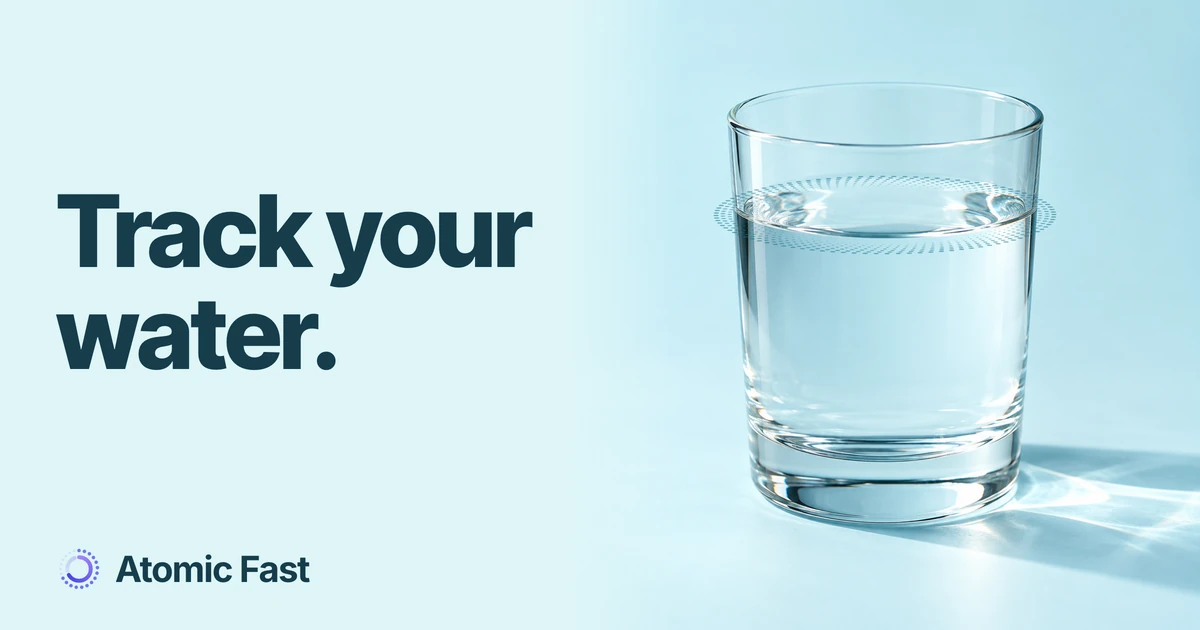
You finish a glass of water, open Water Intake and tap 1 Glass. Do you still need to press Done? Or has that first tap already saved it? The distinction matters: some controls record water immediately, while others only change the amount you’re about to record.
The short version
Open Meals, check the selected date and tap the Water row to open Water Intake. A preset saves its displayed amount immediately; for another amount, adjust Custom Amount and tap Log … ml. The total adds up the water entries for that selected day, and the small × beside an entry removes it from Atomic Fast. The displayed goal is a setting, not a measurement of hydration or a recommendation for how much you should drink.
Before you add an entry
This guide starts after sign-in and onboarding. Water logging is available without Atomic+ and doesn’t use an AI scan. You don’t need a food photo, a barcode or a meal entry to record water.
The water controls described here use milliliters (ml) on both platforms. Check your bottle or measuring vessel if you know its capacity. The preset named 1 Glass means 250 ml in the app; it doesn’t know how large your own glass is. Likewise, 1 Bottle always records 1,000 ml, even if the bottle in your hand is smaller.
Meals has a selected date. Check it before adding anything, especially after browsing an earlier day. Use the date strip or calendar to return to today when that’s the day you intend to update.
Add the amount you actually want to record
- Open Meals and select the day. Find the Water row among the daily summaries.
- Tap the row itself to open Water Intake. Its separate + button adds 250 ml immediately. Use the row body when you want to choose an amount or inspect the entries.
- Choose a preset, or adjust Custom Amount. The presets are 1 Glass: 250 ml, 2 Glasses: 500 ml, 3 Glasses: 750 ml, and 1 Bottle: 1,000 ml. Tapping one records that amount straight away. In Custom Amount, minus and plus change the proposed amount by 50 ml, from a minimum of 50 to a maximum of 2,000 ml.
- For a custom amount, tap the Log button. It includes the amount, such as Log 400 ml. Changing the stepper alone hasn’t saved anything. A preset doesn’t need this extra step.
- Check the total and the entry list. The saved amount should appear under Today’s Log, with a time. Done closes the sheet; it isn’t a final confirmation for amounts you’ve already added.
What each preset records
Read the amount,
not just the name.
These are the app's preset amounts. Your glass or bottle may hold something different.
Custom Amount moves in 50 ml steps. Tap the Log button to save your selection.
For example, suppose you want to record 400 ml. Custom Amount starts at 250 ml when you open a fresh sheet. Tap plus three times to reach 400, then tap Log 400 ml once. If you already changed the stepper, read its current value first rather than counting from memory.
The sheet stays open after adding water, so another tap on a preset or Log button adds another entry. You can use that to record separate amounts, but it also explains many accidental duplicates. Closing the sheet doesn’t undo those taps.
You can also reach water through Log → Log Water. On iPhone, expand the logging sheet to reveal the additional actions; Android uses More options. Android then opens the water sheet in Meals. Using the Meals route above makes it easier to check the selected day first. If you also want to record food, the meal-logging guide explains the separate save flow.
Read the total, the goal and the selected day
At the top of Water Intake, the first number is the sum of the day’s saved water amounts. The second is the water goal stored in your settings. The ring fills toward that goal, while the numerical total can keep increasing after the ring is full.
An empty log means no water entries are recorded for the selected day. It doesn’t establish that you drank nothing. Nor does a full ring establish that you’ve met your body’s needs. This screen is a record of the amounts you entered.
The heading Today’s Log is also used when you open water for an earlier selected date. Check the date in Meals before opening the sheet. Entries added to a previous day use a placeholder time around noon; the water sheet doesn’t offer a time picker. Don’t read that timestamp as a precise record of when you drank.
Today’s recorded water can also appear alongside fasts and meals in the Daily timeline’s view of your day. That view and the selected-day water total answer different questions: one shows the sequence of recorded events, while the other adds their amounts.
Remove a duplicate or replace the wrong amount
Open Water Intake for the affected day and look under Today’s Log. Find the mistaken entry by its amount and time, then tap its ×. Atomic Fast removes that entry from the list and subtracts its amount from the total.
There isn’t an in-place amount editor in this sheet. If you recorded 500 ml but meant 400 ml, remove the 500 ml entry and add 400 ml. If you recorded the same drink twice, remove only the duplicate. Adding a smaller entry won’t cancel the larger one; it increases the total again.
Illustrative entries · one selected day
Remove the extra entry.
The total follows.
Before correction
One 250 ml entry was added twice.
After deleting the duplicate
The intended 250 ml and 400 ml entries remain.
900 ml − 250 ml = 650 ml
For an entry on the wrong day, remove it from that day’s list, close the sheet, select the intended date in Meals and add the amount there. The replacement gets the logging time assigned by that route, so it won’t preserve the removed entry’s timestamp.
Check connected health records separately. With the relevant access, water entered through the sheet can also be written to Apple Health on iPhone or Health Connect on Android. Removing the Atomic Fast entry does not issue a matching deletion there. If you rely on those records, check the other app after correcting a mistake here. Don’t assume the two totals now match.
Find the water goal setting
Open Me and tap your profile card to open Personal Details. Find Nutrition Goals, then tap its summary row to expand the individual fields. Water goal is entered in ml.
On iPhone, edit the number in that field and dismiss the keyboard with Done. On Android, finish with the keyboard’s Done action or move focus away from the field to save it. Reopen Water Intake to check the goal now shown.
Changing the goal changes the comparison used by the progress display. It doesn’t add water entries or change their amounts. This guide explains the setting’s location; it doesn’t choose a target for you.
Frequently asked questions
Does tapping the plus beside Water open the logging screen? No. The plus on the Meals Water row records 250 ml immediately. Tap the body of the row to open Water Intake and choose another amount.
Do I need to press Done to save a preset? No. Each preset saves on tap. Done closes the sheet. Custom Amount is different: its plus and minus controls adjust a proposed amount, and the Log button saves it.
Can I enter 425 ml? The custom control moves in 50 ml steps, so 425 ml isn’t an available value. Its range is 50 to 2,000 ml per entry. The displayed number is the amount you’ll record; it isn’t an automatic measurement.
Why does a full ring still show a larger total? The ring stops filling at the configured goal, but the total continues adding saved entries. Review the list if the number looks wrong, rather than treating the filled ring as a limit on logging.
Will deleting a water entry also delete it from Apple Health or Health Connect? No matching deletion is sent by this action. It removes the Atomic Fast entry from its own total. Check any connected health record separately after correcting a duplicate or wrong amount.
Sources and product notes
Product information checked: October 22, 2026.
Product verification: The iPhone and Android water sheets, Meals entry points, stored amounts, selected-day totals, deletion handlers and goal settings were checked against current source code and documentation. The connected-health write and deletion paths were checked separately. This was source verification, not an executed mobile walkthrough or a review of individual health records. The preset comparison uses actual app amounts; the correction example uses fictional entries to explain the arithmetic. Neither graphic recommends a drinking target.
Download Atomic Fast on the App Store or Google Play.
Try Atomic Fast free
Track your fasts, log your meals, and see how they affect each other, on iPhone and Android.


 Scan to download