Change the Theme and Timer Ring in Atomic Fast
Choose Automatic, Light, Dark or Deep Purple in Atomic Fast. Switch timer rings, find the Phase Animation setting and check which controls affect the display.
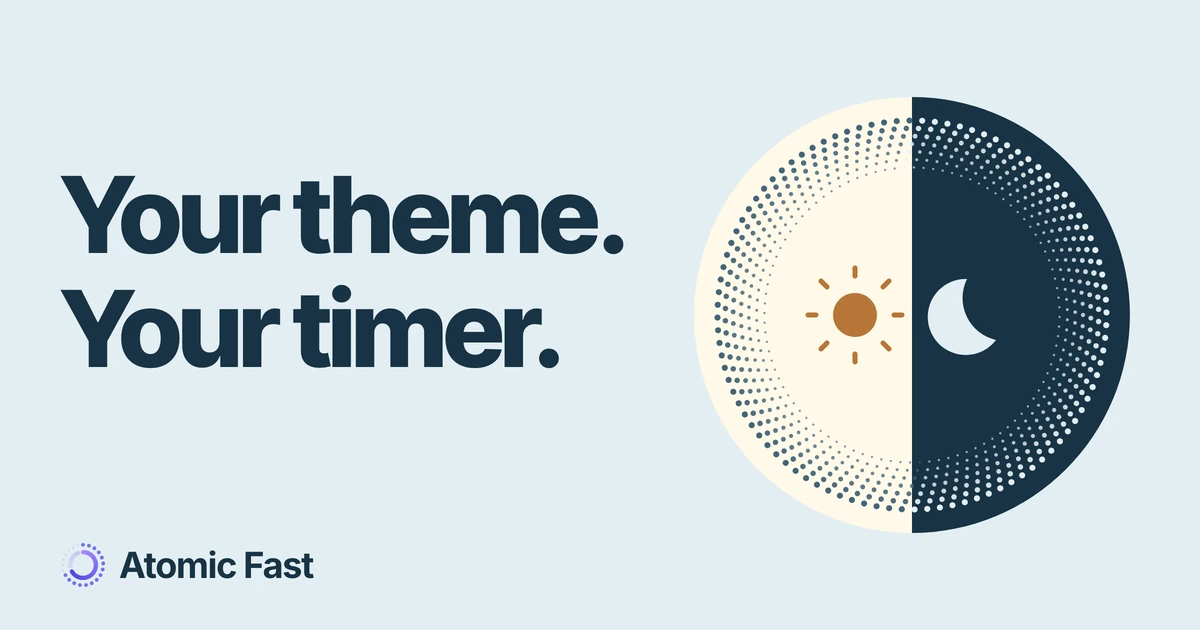
Your phone has switched to a light background, but Atomic Fast is still dark. Or you like the app’s colors and only want a different timer ring. Both are handled in the same settings screen, through separate controls.
You can change these choices without starting a new fast or editing your existing records.
The short version
Open Me, find the Appearance section and tap Theme & Ring Style. Choose Automatic, Light, Dark or Deep Purple, then select Atomic Ring or Classic Ring separately. Automatic follows your phone’s appearance; the other themes stay on your chosen palette. Phase Animation appears only when Classic Ring is selected. These options are free on iPhone and Android; see the product notes for what was verified.
1. Choose the app’s theme
These steps use the English labels. If your app uses another language, the same controls may have translated names. Our language guide explains the separate App Language setting.
- Open the Me tab.
- Scroll to the Appearance heading and tap Theme & Ring Style. The next screen is titled Appearance.
- In the Theme section, tap the option you want. A checkmark identifies the selected choice.
- Look at the app’s background and text colors. There is no separate Save button for this setting.
- Return to Today to see the theme around the timer. You don’t need to stop an active fast first.
On iPhone, if changing the theme takes you out of Appearance, open Theme & Ring Style again to check the selection. Returning to the previous screen doesn’t by itself mean the choice failed to save.
What the four choices mean
Automatic follows the phone’s light or dark appearance. It is useful when you already use a system appearance schedule and want the app to follow it. Atomic Fast doesn’t provide a separate theme schedule on this screen.
Light keeps the app on its light palette, even when the phone uses dark appearance. Dark keeps its dark palette selected. Deep Purple is another fixed choice with its own dark, purple palette; it is not the name of Automatic’s night setting.
For example, if your phone changes to dark appearance in the evening, choose Automatic to have the app follow that change. If you prefer the same light app background throughout the day, choose Light instead. These are display preferences, not changes to the phone’s brightness or your fasting goal.
Choose what sets the colors
Follow the phone.
Or keep one palette.
Automatic
Phone uses light → app uses light.
Phone uses dark → app uses dark.
Light
Keep the light palette.
Dark
Keep the dark palette.
Deep Purple
Keep a purple, dark palette.
2. Choose the timer ring separately
Stay in Appearance, or reopen it from Me. Under Ring Style, choose one of two options:
- Atomic Ring uses the dotted mesh animation.
- Classic Ring uses a solid arc with phase colors.
The ring choice is separate from the theme. You can pair a light palette with Atomic Ring, or a dark palette with Classic Ring. Selecting Deep Purple doesn’t require a particular ring.
After choosing, return to Today and check the ring around the timer. If a fast is already running, its elapsed time continues. Switching the drawing style doesn’t start another session, change the stored start time or change the goal you selected. Use the start-and-finish guide when you want to change the session itself.
3. Find the Classic Ring’s animation switch
Select Classic Ring and the Phase Animation switch becomes available. Its description is Ambient animation inside the ring. Turn it off if you want that inner effect removed while keeping the Classic arc.
This is a specific control for Classic Ring. It doesn’t turn off Atomic Ring’s dotted animation, and it isn’t a switch for every animation in the app. If you change back to Atomic Ring, the Phase Animation row is hidden because it doesn’t control that style.
The inner effect also isn’t shown before a scheduled fast has begun. If you’re checking a future start, an empty center doesn’t necessarily mean the switch is off. Check the selected ring and the switch directly in Appearance rather than judging the setting from that display alone.
Ring style is a separate choice
Two rings.
One extra control.
Atomic Ring
Dotted mesh animation.
Phase Animation is hidden for this style.
Classic Ring
Solid arc with phase colors.
Phase Animation
On: allow the inner ambient effect.
Off: remove that inner effect.
A simple combination to try
Suppose you want the app to follow your phone’s colors but prefer the Classic timer without its inner ambient effect:
- Choose Automatic under Theme.
- Choose Classic Ring under Ring Style.
- Turn Phase Animation off.
- Return to Today and check the result.
Each control answers a different question: which palette to use, which ring to draw, and whether to show Classic’s inner effect. If you later want to keep the app dark all day, change only Theme to Dark. There is no need to change the ring again.
You may also notice Share Button on Timer on this screen. That is a separate control for the quick share icon beside the ring. It doesn’t select a theme or ring style; the sharing guide covers the card preview and sharing steps.
If the result isn’t what you expected
The phone changed appearance, but the app didn’t. Check that Theme is set to Automatic. Light, Dark and Deep Purple are deliberate fixed choices. On iPhone, leave the app and return after changing the phone’s appearance; the app also checks the system appearance when it becomes active again.
You can’t find Phase Animation. Select Classic Ring first. The control is hidden for Atomic Ring. Changing only the theme won’t make it appear.
The dots still move after you turn an animation setting off. Check which ring is selected. The Phase Animation switch controls Classic’s inner effect, not Atomic’s mesh. Choose Classic and turn that switch off if the inner effect is what you want to remove.
A widget looks different from the app. This guide verifies the app’s own screens. Don’t use a widget or companion display as the only test of the selected theme; return to the app and check Appearance and Today.
If a selection still seems wrong, reopen Appearance and look for the checkmark before changing another option. Checking one control at a time makes it easier to identify whether the mismatch is the palette, ring or inner animation.
Frequently asked questions
Do I need Atomic+ for Deep Purple or Classic Ring? No. All four themes and both ring styles are available on the free plan on iPhone and Android.
Will changing the theme reset my fast or meal history? No. These controls update appearance preferences. They don’t edit your fast records, meal entries or fasting goal.
Can I choose when the app switches between light and dark? There is no separate timing control in Appearance. Choose Automatic to follow the phone’s system appearance, including a schedule you have configured there.
Is Phase Animation an app-wide reduced-motion setting? No. It controls the ambient effect inside Classic Ring. It doesn’t disable Atomic Ring’s mesh or every transition elsewhere in the app.
Sources and product notes
Product information checked: November 14, 2026.
Product verification: The settings route, four themes, two rings, persistence and conditional animation control were checked against the current iPhone and Android implementation. Their free availability was checked against the entitlement documentation and settings controls. This was a code and documentation review, not a mobile walkthrough. Detailed source paths and the reviewed revision are retained in the editorial record.
The guide covers the app’s own appearance controls. It does not establish matching behavior for every widget or companion display, preference transfer between phones, or an app-wide reduced-motion mode.
Get Atomic Fast on the App Store or Google Play. Open Me → Theme & Ring Style to choose the display that suits you.
Try Atomic Fast free
Track your fasts, log your meals, and see how they affect each other, on iPhone and Android.


 Scan to download