Use Atomic Fast When You're Offline
Keep your fast recorded without a connection. Learn which Atomic Fast tools work locally, which food requests need internet, and what to check after reconnecting.
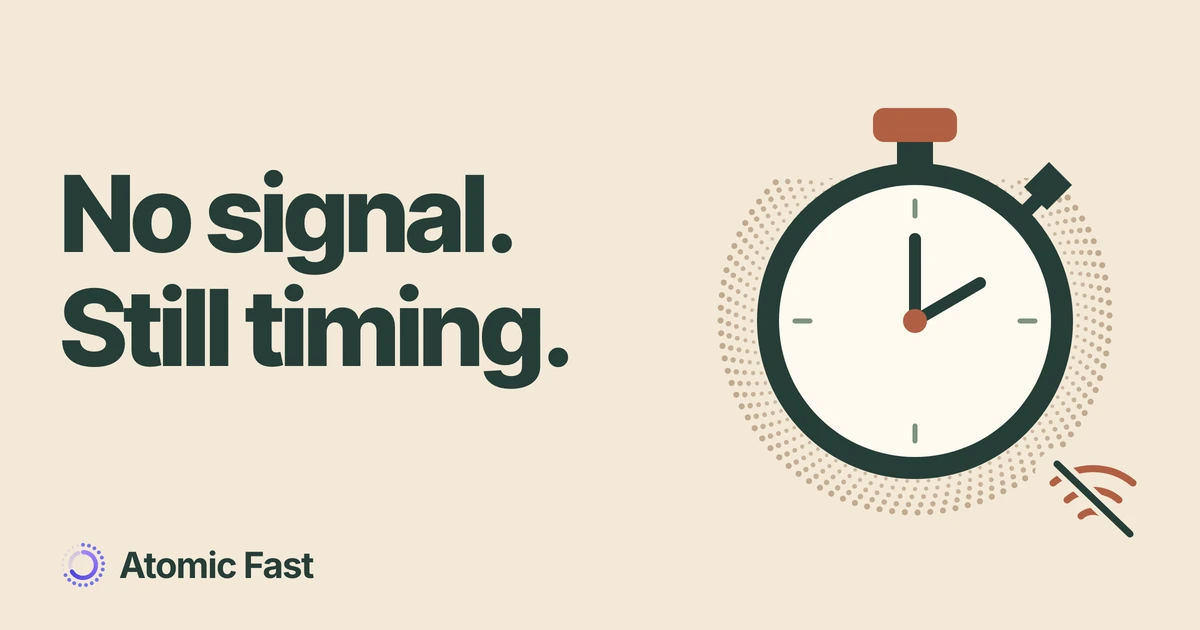
You open Atomic Fast somewhere with no reception. The timer is still available, but an AI food scan won’t return a result. Those two things can happen together: recording a fast and asking a food service for new information use different parts of the app.
Knowing that boundary helps you keep the record you intended, without repeatedly retrying a request that cannot finish yet.
The short version
Atomic Fast can start, time and save a fast on your phone without an internet connection. Food entries already stored on the phone can also be available, while AI analysis and new online food or barcode lookups need internet. A failed lookup is not a saved meal. Finish setup while connected, check that a record was saved, and retry unfinished online requests after reconnecting.
Before you lose your connection
Open the app while you still have internet and finish any sign-in or onboarding steps. Check that Today opens and that the goal shown on the main Start Fast button is the one you intend to record. This guide assumes that setup is complete; it doesn’t promise that a new sign-in, account recovery or reinstall can be completed offline.
If you expect to reuse a particular food or meal, look for it on this phone beforehand. Something you remember seeing in an online search is not necessarily a stored entry. My Foods and My Meals, reached through Search food database, are useful places to check what you already have.
The timer and manual food tools are part of the free plan. A subscription doesn’t turn remote AI analysis into an offline feature. Connection requirements and plan limits are separate: an available AI allowance still needs internet to send the request.
1. Start and finish the fast normally
You don’t need to turn on a separate offline setting to use the local timer.
- Open Today. If a fast is already active, use that record rather than trying to start another.
- To begin a new one, tap the main Start Fast button with your displayed goal. That starts immediately. The adjacent More fasting options control opens the separate goal and start-options flow.
- Check that the timer now shows an active fast. Its elapsed time comes from the saved start timestamp and the phone’s current time; it isn’t waiting for a server to count each second.
- When you want to finish the record, tap End Fast. Complete the sheet with Save & Close, or choose Save Without Details. Opening the sheet alone doesn’t finish the save.
- On Today, use the Latest Fast heading to open the session list and check the completed record.
The same core sequence applies on iPhone and Android. Our first-fast walkthrough explains the start controls and completion choices in more detail.
For example, losing reception after starting a fast does not create a second session or require you to restart the first. Keep using the existing record. You can finish and save it before your connection returns; checking the session list confirms what the app recorded.
The phase labels beside the timer are calculated from elapsed hours too. Their availability offline does not mean the phone measured your glucose, ketones or any other bodily change. Notification delivery and widget presentation also have their own phone settings; this guide makes no exact-alert guarantee.
2. Separate stored information from new requests
The food screen combines local entries with online results. Both platforms search the phone’s food entries first, then request additional database results. Without internet, those additional results can be missing even while a local match is visible.
Barcode lookup has a similar boundary. The app checks for a matching product already stored on the phone before requesting it online. That can make a previously stored product available offline. It does not mean the phone holds every barcode, or that merely scanning a product once permanently stored it.
Where the action happens
The timer stays local.
New requests need a connection.
On this phone
A connection is not needed
- Start, time and save a fast
- Find food entries already stored here
Existing setup and local records are the starting point.
An online request
Reconnect for new results
- AI photo, label or text analysis
- Additional database results
- Barcode products not stored here
A stored match is an exception, not an offline catalog.
Scan Food, Upload Photo, Scan Label and Describe Meal need an online AI response. Taking or selecting an image is only an input step; it doesn’t mean analysis has finished. The same applies to asking AI to fix a result.
For a manual alternative, open Search food database and check My Foods or My Meals. Use an entry only if it describes what you ate, and review the amount and meal time before saving. A similar name alone is not a reason to use its nutrition values.
If you have the label’s values, you can create a reusable custom food without asking AI to read it. Follow that guide’s serving-size checks and current g/ml input workaround. Saving a custom food places it in My Foods; you still need to add it to the meal builder and finish with Done to record eating it.
If the app shows You’re currently fasting, read the choices before confirming. Log Meal Anyway keeps the fast running; Break Fast & Log ends it as part of the action. Being offline doesn’t change the meaning of those choices.
3. Recover from an unfinished scan or lookup
A missing barcode result while offline doesn’t establish that the product is absent from the database. The lookup may simply have failed to reach the service. Likewise, a spinner or a selected photo is not confirmation that a meal has been logged.
Start by checking Meals on the intended day. If the meal is already there, open it and inspect its contents before creating another. If it isn’t there, you still need a completed logging action.
After an unsuccessful request
A result and a saved meal
are separate steps.
Check the record
Open Meals on the intended day. If the meal exists, inspect it before adding another.
Retry if unfinished
Reconnect, then repeat the lookup or analysis that did not complete.
Review and save
Check the food, portion and meal time. Finish the save and find the entry in Meals.
Restoring your connection does not confirm that you logged the meal.
After reconnecting, retry the unfinished search or analysis. Review the returned food and portion, then complete the relevant save flow. Check Meal Time if you’re recording something you ate earlier, and look for the finished entry on that date. The app’s different logging methods have different confirmation steps, so don’t assume a returned result alone is the final record.
If the request still fails with a working connection, it may have a different cause: product coverage, camera access, account access or an AI allowance can still matter. Read the message shown. Repeatedly resending the same input won’t resolve every kind of failure, and deleting local records is not a connection-recovery step.
A local record is separate from a cloud backup
Finding the completed fast or meal on this phone confirms a local record. It doesn’t confirm that a cloud backup contains that change or that another device has received it.
Optional subscriber backups need the relevant account access and connectivity. They are also separate on iPhone and Android, rather than a promise of live cross-platform synchronization. Use the backup and restore guide to check that process separately. Reconnecting alone is not evidence that a particular backup succeeded.
Frequently asked questions
Can I start a fast after I’ve already gone offline? Yes, in an already set-up app that opens to Today. The start action saves on the phone; it doesn’t require you to have started the timer before losing internet.
Why can I find some foods but not others? The search can show entries stored locally while the additional online request fails. A matching stored barcode product can also be found locally. Neither case provides the full remote catalog offline.
Will an unsuccessful AI scan save itself when I reconnect? Don’t rely on that. Check Meals first, then retry the unfinished request if needed. Review its result and complete the save; reconnection is not a meal confirmation.
Do I need Atomic+ to record a fast offline? No. Core timer tracking is free. Atomic+ does not remove the connection requirement for remote services, including AI analysis and cloud backup.
Sources and product notes
Product information checked: November 12, 2026.
Product verification: The iPhone and Android timer entry points, local start/completion saves, timestamp calculations, stored-food search, barcode fallback and AI request paths were checked against current source and documentation. The free-tier and backup boundaries were checked against the product capability and entitlement documentation. This was a code and documentation review, not an airplane-mode device test. Detailed source paths and the reviewed revision are retained in the editorial record.
The guide describes operational behavior in an installed, signed-in app. It does not guarantee offline first-time access, every account-recovery case, notification timing or the availability of a particular food entry.
Keep your fast and meal records with Atomic Fast on the App Store or Google Play.
Try Atomic Fast free
Track your fasts, log your meals, and see how they affect each other, on iPhone and Android.


 Scan to download