Create a Custom Food in Atomic Fast
Create a reusable food in Atomic Fast with nutrition from your label. Match the serving size, save it to My Foods, then check the portion and log it in a meal.
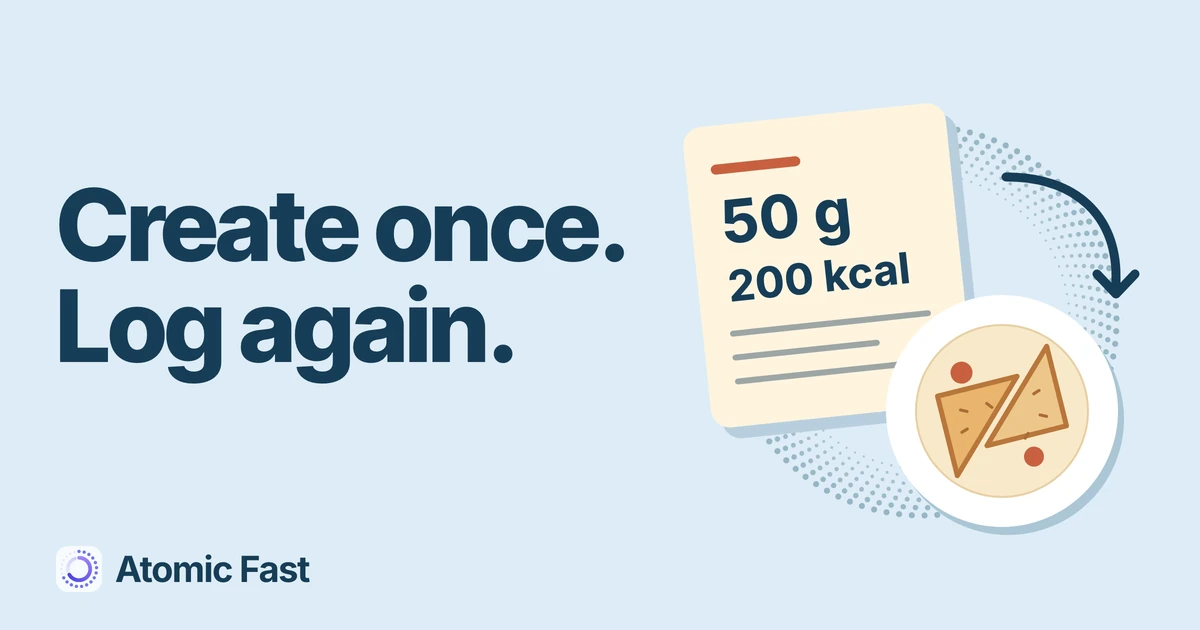
The food you buy every week has a clear nutrition label, but you can’t find the right entry in search. You could keep choosing a close match and correcting it. Or you can enter the values once and keep that food in My Foods.
The important part is choosing one serving size and making every nutrition value refer to that same amount. Saving the food and recording that you ate it are two separate steps.
The short version
Open Log → Search food database → My Foods, then create a food with a name, serving size and calories. Select g for a solid food, or ml with a beverage category for a drink; custom-food input in oz and fl oz currently has a conversion limitation. Enter known nutrition for that serving and tap Save. To record eating it, use the food’s separate +, check the meal’s portion and time, then finish with Done and any confirmation shown.
Before you start
Have the nutrition label or another reliable set of values in front of you. Check whether it gives amounts per serving, per 100 g, per 100 ml or for the whole package. A package can contain several servings.
Choose a name you will recognize later, including the brand or variety when useful. “Breakfast cereal, original” is easier to distinguish from a chocolate version than “Cereal.” Creating separate entries for genuinely different products helps avoid reusing the wrong values.
These instructions use English labels on iPhone and Android, from the normal app view after onboarding. Manual custom-food creation doesn’t require Atomic+ or use an AI scan. An optional food photo doesn’t calculate the nutrition for you; this is a form you complete yourself. For other input methods, see how to log a meal.
1. Open My Foods and create an entry
Open the app’s + logging menu, choose Search food database, then switch to My Foods.
On iPhone, the empty list offers Create Food. On Android, tap the No custom foods yet area. If you already have entries, use the + beside the custom-food list’s heading. This opens Create Food.
Enter Food name and choose a matching Category. For a drink, choose Beverage so the app treats its portion as a liquid.
2. Set the serving size before copying nutrition
In Serving, enter the Size and select its unit. For this guide’s solid-food example, that is 50 g. Use a serving of at least 1 g, or at least 1 ml for a beverage; very small amounts below 1 are not preserved as entered by the current creation flow.
Use g or ml for custom-food input for now. The form also offers oz and fl oz, but the current save path doesn’t consistently convert those entered amounts before later portion calculations and display. On iPhone, an imperial preference can initially select oz, so check the unit explicitly. Use the g or ml amount printed on your label. If you don’t have that information, obtain an appropriate amount before saving rather than guessing.
Your general display preference can still show a saved portion in oz or fl oz. That display conversion is separate from the unit you enter when creating the food. Also keep weight and volume distinct: a number of millilitres is not automatically the same number of grams for every food.
3. Match every nutrition value to that serving
The section says Nutrition (per serving). If you enter 50 g, the calories, protein, carbs and fat should all describe 50 g, even when the label’s main column describes 100 g.
Here is a fictional label example. Per 100 g, it lists 400 kcal, 10 g protein, 54 g carbs and 16 g fat. For a 50 g custom serving, halve every figure: 200 kcal, 5 g protein, 27 g carbs and 8 g fat. Alternatively, create a 100 g serving and copy the original column unchanged.
One serving basis
Half the amount.
Half every value.
A fictional label example: change 100 g to 50 g by dividing every nutrition value by two.
Label column
100 g
400 kcal
- Protein
- 10 g
- Carbs
- 54 g
- Fat
- 16 g
Your custom serving
50 g
200 kcal
- Protein
- 5 g
- Carbs
- 27 g
- Fat
- 8 g
Both amount bars start at zero and share a 100 g maximum.
Enter Calories as a positive whole number in kcal. Protein, carbs and fat are entered in grams. Expand Nutrients & Minerals if you have those values: fibre and sugar use grams, while sodium, potassium, magnesium, calcium and iron use milligrams.
Don’t mix the calories from one column with the macros from another. The app may warn when the entered macros imply substantially more energy than the declared calories, but the absence of a warning isn’t proof that your entry is correct.
Leaving a macro blank saves it as zero in this flow. That means a calorie-only entry will understate protein, carbs or fat if the food contains them. Optional micronutrients left blank remain unavailable. Enter known values, and remember what is missing when reading later totals; an empty field doesn’t establish that the food contains none.
4. Save the food, then add it to a meal
-
Tap Save. You should return to My Foods, where the reusable entry is now listed. This hasn’t added anything to your meal log yet.
-
Use the separate + on that food’s row to add it to the meal builder. Tapping the row itself opens editing, which can be confusing if you expected it to record the food immediately.
-
Review the loaded amount and nutrition, then set Meal Time to when you ate. The custom serving is a starting amount, not an assumption about every occasion. If you add other foods, inspect the whole list before finishing; pressing a food’s plus repeatedly can add duplicates.
-
Tap Done to finish the new meal. If a fasting warning appears, Log Meal Anyway saves the meal without ending the fast; Break Fast & Log ends the running fast and saves the meal. A backdated meal may not trigger that warning, so review the timer separately when correcting an earlier meal. Then check the saved entry in Meals on the relevant date.
Two different results
Save the food.
Then log the meal.
-
Save
A reusable food
Kept in My Foods.
No meal logged yet
-
+ and review
A meal in progress
Check portion and Meal Time.
Still needs completion
-
Done
A recorded meal
Complete any confirmation.
Check the entry in Meals
Next time, return to My Foods and use the existing entry. You don’t need to create another copy of the same food for each meal. If you regularly eat several foods together, saving a reusable meal combination serves a different purpose: My Foods stores an individual food; My Meals stores a combination.
If something doesn’t look right
Save is unavailable. Check for a name, positive whole-number calories and a positive serving size. Blank calories, zero calories or a decimal calorie value won’t satisfy this form. It currently can’t create a zero-calorie food; don’t invent calories just to enable Save.
The total is roughly double what you expected. First check the serving basis. A 50 g serving with the nutrition copied from a 100 g column describes too much nutrition for that amount. Also check for a second copy in the meal builder before changing the source food.
You saved it but can’t find a meal. Look in My Foods. Saving there creates the reusable entry; adding it with its plus and completing the builder creates the meal record.
A serving looks unexpectedly tiny. Check whether the food was originally entered in oz or fl oz. The current conversion limitation is a reason to correct the entry using the label’s g or ml amount, not to trust the displayed portion without checking it.
Frequently asked questions
Can I create a food without a photo? Yes. The photo is optional. The nutrition comes from what you enter, so adding an image doesn’t fill or verify the numbers.
Should I copy per-serving or per-100 g nutrition? Either can work when the size matches. Choose 100 g and copy that column, or choose the label’s serving size and copy its per-serving column. If you calculate a different serving, scale all the nutrition values together.
Will the app check the label for me? Not in Create Food. This manual route validates some fields and can show a macro warning, but it doesn’t compare your entry with the package. Recheck the name, amount, units and every copied figure before saving.
Does creating a food use my AI allowance? No. Creating it manually and adding it from My Foods don’t request an AI analysis. Photographing a food or label for analysis is a separate logging method with its own limits.
Sources and product notes
Product information checked: October 28, 2026.
Product verification: We checked the iPhone and Android logging entry points, My Foods lists, creation forms, validation, nutrition storage and add-to-meal actions against current code and meal-logging documentation. These checks establish the supported controls and saved results. No mobile-device walkthrough or nutrition measurement was performed.
Known limitations: Custom-food creation in oz or fl oz does not consistently convert the entered size for subsequent portion handling. The creation flow also clamps sizes below 1 to 1, requires positive whole-number calories and stores omitted macros as zero. The examples use g, and all illustrated nutrition values are fictional arithmetic examples, not facts about a real product. Detailed source references are retained in the editorial review record.
Keep your usual foods in Atomic Fast on the App Store or Google Play.
Try Atomic Fast free
Track your fasts, log your meals, and see how they affect each other, on iPhone and Android.


 Scan to download