Change Measurement Units in Atomic Fast
Switch between Metric and Imperial in Atomic Fast. See which weight, height and food displays change, and why water logging and macro grams stay the same.
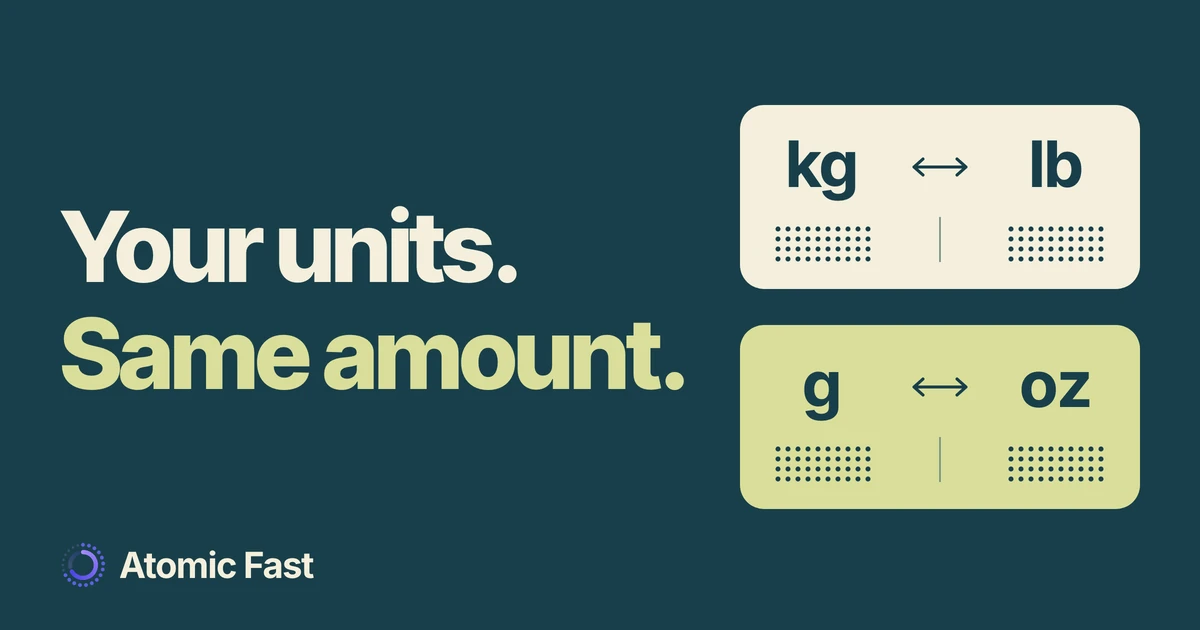
You know your weight in pounds, but your profile shows kilograms. Or you weigh food in grams and want meal quantities to use the same unit. Atomic Fast has one setting for these display choices, inside Personal Details.
Changing that setting is different from entering a new weight or changing a food portion. Start with the unit preference when the measurement is correct but the label is unfamiliar.
The short version
Open Me, tap your profile card and find Unit System in Personal Details. Select Metric or Imperial; there is no separate Save button for this row. The choice affects body measurements and supported food-quantity displays on iPhone and Android. Water logging stays in ml, and protein, carbohydrate and fat amounts stay in grams. The product notes explain what was checked.
1. Change the Unit System setting
These steps use the English labels. The controls may have translated names if you use another app language.
- Open the Me tab.
- Tap the profile card at the top, where your name and profile picture appear. This opens Personal Details.
- Find the Unit System section. It has two choices: Metric and Imperial.
- Tap the choice you want. The setting saves when you select it.
- Look at Height and Weight in the body-measurement section below. Their labels should follow the selected system. Target Weight, when shown for your goal, follows it too.
Use this row if your only aim is to change units. You don’t need to open the individual Height or Weight editor, re-enter a number or save a new measurement.
The setting is available without Atomic+. It also doesn’t require a food scan or use an AI scan allowance. You are changing a profile preference in the app you have already set up.
2. Check what changes
With Metric, body weight is shown in kg and height in cm. Supported solid-food quantities use g, while liquid-food quantities use ml.
With Imperial, body weight is shown in lb and height in feet and inches. Supported solid-food quantities use oz, while liquid-food quantities use fl oz. Food search serving descriptions and saved meal-item quantities follow this preference on both platforms.
There is one shared choice for these body and food displays. There isn’t a separate setting here for “body weight in lb, food in g,” or a third option for body weight in stone. Choose the system that fits how you most often read your records, while checking the unit shown beside any number you enter.
01 / The shared preference
Choose the units
you read.
Body weight
Height
Solid food
Liquid food
These stay the same
A food’s type matters too. The app distinguishes solid and liquid quantities when choosing oz or fl oz. Those labels aren’t interchangeable: oz describes mass, while fl oz describes volume. Changing the unit preference doesn’t turn a solid-food entry into a liquid one or fix an incorrectly classified food.
3. Read a converted amount without changing it
Suppose a saved food portion is 100 g. In an Imperial quantity display, it appears as approximately 3.5 oz. That is the same portion expressed in another unit, with the displayed number rounded to one decimal place.
Don’t replace 100 with 3.5 in a field that still says g. That would enter a much smaller portion. The label beside the field tells you what number it expects, even when the rest of the app uses Imperial.
02 / A conversion example
Same portion.
Different label.
Metric
100g
Imperial
≈ 3.5oz
The saved amount stays the same.
Only its display changes.
For a liquid-food quantity, 250 ml displays as approximately 8.5 fl oz. This example describes a food-quantity display; it doesn’t change the separate water logger’s controls. The figures are conversion examples, not suggested portions or drinking targets.
The Unit System row changes presentation without recalculating your saved calorie or macro targets. Existing meal amounts and nutrition values aren’t rewritten by that switch. If you need a different daily target, use the separate nutrition-goal controls.
The current iPhone and Android height formatters can show different inch values for the same saved height. If the displayed height looks wrong, compare it with your known measurement before saving an edit. Avoid opening a height editor and saving its rounded value just to test the unit switch. Check the displayed unit first; edit the measurement only when the measurement itself needs correcting.
Which screens keep their own units?
Water logging stays in ml. Selecting Imperial doesn’t turn the water presets, custom amount or daily water total into fl oz controls. If your bottle uses fl oz, use the equivalents and custom-entry guidance in the water-tracking guide.
Nutrition grams stay grams. Protein, carbohydrate and fat describe nutrient amounts. They remain in g even when the food portion above them is shown in oz. A portion’s weight and its protein content are different values, so don’t expect those labels to match.
Food confirmation differs by platform. On iPhone, the serving label in food confirmation follows the selected system. Android’s main food-confirmation amount and portion editor still use grams, even though food-search serving descriptions and saved meal quantities can show oz or fl oz. Read the local field label before adjusting an amount.
Create Food needs separate care. For a new custom food, keep its serving input in g or ml as explained in the custom-food guide. The current save calculation does not convert an oz or fl oz serving-size input before normalizing its nutrition. Switching the profile to Imperial doesn’t remove that limitation.
If the result looks wrong
You selected Imperial but still see grams. First identify the value. Macro grams, a custom-food input and Android’s confirmation amount can remain in grams by design. Check the Weight label in Personal Details or a saved meal’s food quantity to confirm the shared preference.
A weight number changed much more than expected. Check whether you only selected Unit System or also saved an individual measurement editor. The unit row doesn’t replace the stored weight. If you entered a new number, verify both that number and its unit before making another edit.
A food shows oz when you expected fl oz. Check the food entry and how its quantity was recorded. The Metric/Imperial choice selects the display system; it doesn’t correct the food’s solid/liquid classification. Keep the amount in the field’s stated unit while checking the entry.
You want to undo the display change. Return to Me → Personal Details → Unit System and choose the other option. You don’t need to delete meals, reset the app or start another fast. Reopen Personal Details to check the selection before changing anything else.
Frequently asked questions
Can I use pounds for body weight and grams for food? There is one shared Metric/Imperial preference for supported body and food displays. Separate preferences are not available in this setting. Some inputs still use fixed units, as described above.
Does switching units change my calorie or macro goal? No. The Unit System row changes the display preference. It doesn’t rerun the nutrition calculator or change the saved calorie, protein, carbohydrate or fat targets.
Why does my water total still say ml? Water logging uses ml independently of this preference. Imperial food-quantity displays do not mean that the water logger has switched to fl oz.
Do I have to change my phone’s language or region? No. Select Metric or Imperial directly in Personal Details. Changing the app’s language is a separate task and isn’t required to choose your measurement system.
Sources and product notes
Product information checked: November 16, 2026.
Product verification: The Me → Personal Details route, Unit System controls, profile persistence, body formatters and food-display callers were checked against the current iPhone and Android code. Water, macro and food-editor exceptions were checked separately. The settings route has no Atomic+ gate. This was a code and documentation review, not a mobile walkthrough; detailed paths and the reviewed revision are retained in the editorial record.
The conversion examples use the app’s current food-display factors and rounding. This guide does not establish identical rounding on every platform, matching behavior in widgets, preference transfer between devices or availability in a particular store build.
Get Atomic Fast on the App Store or Google Play. Open Me → Personal Details to choose the units you want to read.
Try Atomic Fast free
Track your fasts, log your meals, and see how they affect each other, on iPhone and Android.


 Scan to download