Set Nutrition Goals in Atomic Fast
Set calorie and macro goals in Atomic Fast, choose manual values or the calculator, and check what Apply Goals changes on iPhone and Android before saving.
By Nazmul Hasan Rupok Published 8 min read

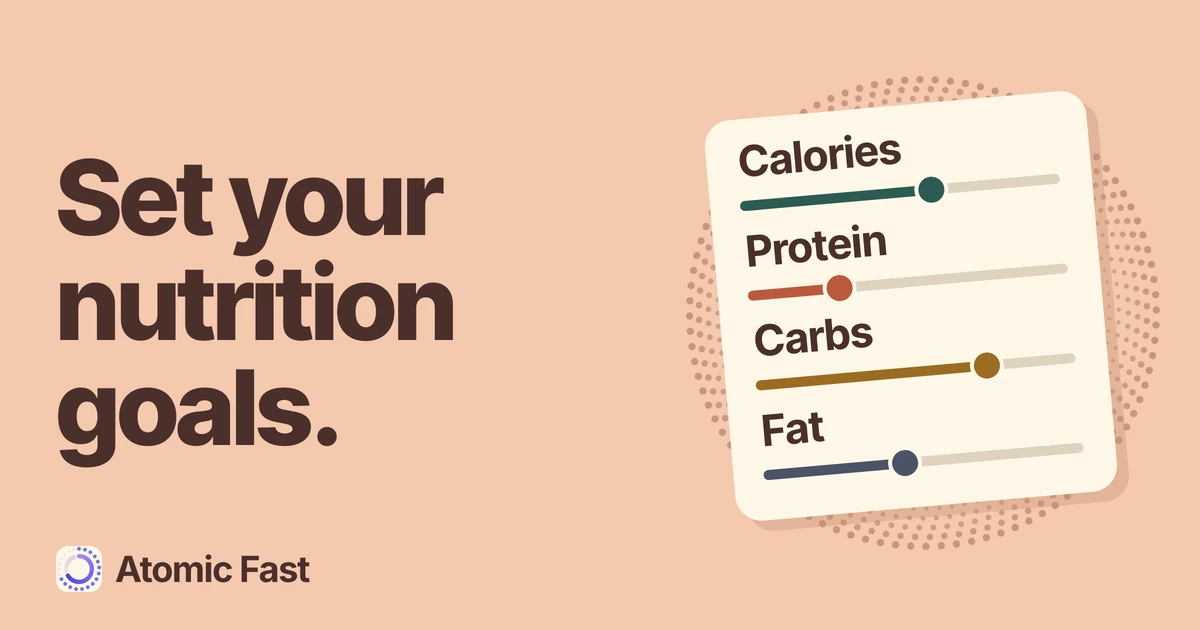
You have a calorie target, a protein number and a few progress rings. The useful question is where those numbers came from, and how to change them without changing something else by accident.
Atomic Fast offers manual fields and a guided calculator. They save different things. In particular, the calculator also saves the fasting duration you select during its setup.
The short version
Open Me, tap your profile card, then find Nutrition Goals in Personal Details. Expand the summary to edit calorie, protein, carbohydrate and fat targets individually, or choose Auto Calculate Goals for an estimate based on your profile. The calculator finishes with Apply Goals, which also saves its selected fasting experience and default duration. Review those settings together; a calculated target or projected date is not a personalized medical prescription.
Choose the route that fits the task
Use manual editing when you already have values to enter, including targets agreed with a qualified professional. Each field stands on its own. Changing protein does not automatically adjust calories, carbs or fat, and these edits do not change your default fasting duration.
Use Auto Calculate Goals when you want the app to calculate a set of estimates from your profile and selected weight goal. It uses weight, height, date of birth, the Gender field and activity level. Lose and Gain also ask for a target weight and pace. The flow then includes fasting information, experience, a duration choice and a results screen.
Both routes are available without Atomic+. The calculator runs on the device and does not consume an AI meal scan. You do not need to photograph food or log a meal to change a target.
Choose what you want to change
Two routes.
Different things saved.
Manual values
Use your own calorie or macro number.
Saves
- The field you edit
Your fasting default stays as it was.
Calculator
Review a set of estimates from your inputs.
Saves
- Calories + macros
- Weight goal + pace
- Fasting experience + hours
Check the fasting duration before applying.
1. Find the settings
- Open Me on either platform.
- Tap the profile card at the top to open Personal Details.
- Scroll to Nutrition Goals and tap the summary showing your current calorie and macro targets to expand the individual fields.
There is a small placement difference:
- iPhone: Auto Calculate Goals is a separate button below the nutrition-goals section.
- Android: expand Nutrition Goals to reveal Auto Calculate Goals, followed by Or edit manually: and the individual fields.
The names here are the English labels. Another app language can change their wording. Water has its own field in this area; water amounts and the intake log are covered separately.
2. Enter your own calorie and macro values
Tap the number for the target you want to change. Calories use kcal; protein, carbs and fat use grams. Enter a whole number in each relevant field.
On iPhone, these fields update the stored profile as you type. There is no separate Apply Goals button for manual editing. On Android, use the keyboard’s Done button or move focus away from the field to save it. Finish the edit before navigating away.
Clearing a field is not a way to turn that target off. The manual controls treat an empty value as zero. Replace a cleared number with the intended value, then reopen the section and check it.
For example, imagine a profile with a 2,000 kcal calorie target and a 100 g protein target. Editing protein to 120 g leaves calories at 2,000 kcal. Those are fictional values showing the controls, not suggested targets. If you intend to change the whole set, enter and verify each field yourself.
A fictional manual edit
One edit.
One field.
Changing protein does not rebalance your calorie target.
Carbs and fat also keep their existing values. Review each field when changing the full set.
3. Check the calculator’s inputs
Choose Auto Calculate Goals and review the profile details on its first screen. Height, current weight and date of birth are required before continuing. Check the displayed units as well as the numbers. Also review Gender and activity level, because the app uses both in its estimate.
Continue with Next on iPhone or Continue on Android. Choose the weight goal that matches the calculation you want to inspect: Lose, Maintain or Gain.
Maintain takes the shorter route. Lose and Gain add a target-weight step and a pace step. For Lose, the target must be below the current weight; for Gain, it must be above it. If the next button stays disabled there, check that relationship before repeatedly tapping it.
The pace screen changes the calculation and may show an estimated goal date. That date comes from the weight difference and selected weekly pace. It does not predict how your body will respond, and a pace labeled Recommended is a preset label rather than a clinical assessment of you.
4. Review the fasting choice before applying
The calculator continues through fasting information and an experience selection, then lets you adjust fasting hours. Check the actual duration shown even if you have used the calculator before: choosing an experience option can replace the current suggestion.
The selected duration does not enter the calorie or macro calculation. A longer duration in this flow does not earn a different calorie allowance. It is a separate preference that gets saved with the results.
On the final screen, review calories, protein, carbs and fat. Use the back control if an input or fasting choice needs correcting, then return to the results and check them again. Tap Apply Goals only when you intend to save that set.
Applying saves the calorie and macro targets, selected weight goal and applicable pace, plus fasting experience and default fasting hours. It does not start a fast or rewrite an active session. Starting and completing a session uses the separate fasting controls.
Closing the calculator before Apply does not apply its new results. However, it is not an undo button for profile details: changes made in the weight, height, date-of-birth or other profile editors can already have been saved. Recheck those details if you opened the flow only to explore it.
5. Confirm what was saved
Return to Personal Details and expand Nutrition Goals again. Compare the calorie and macro numbers with the values you meant to keep. After using the calculator, also check Fasting Goal in Personal Details for the selected duration.
The Meals screen uses your saved targets to put logged intake in context. A target is the comparison number; it does not add food to your record. You still log and review what you ate separately. Updating a target does not rewrite a meal’s saved calories or ingredients.
If you entered custom values and later apply the calculator, its new results replace those values. Keep a note of any professionally agreed targets before experimenting so you can enter them again if necessary.
When the result needs another look
A result looks very different from what you expected. Check height and weight units, date of birth, activity level, selected goal and pace. Return to the results after correcting an input. Do not assume a more precise-looking number is a measured energy requirement.
The calculator has changed your fasting default. Revisit Fasting Goal in Personal Details, or rerun the calculator and check the duration before applying. Manual nutrition edits are the more direct route when you only need to change one nutrition value.
The macro numbers no longer match your intended calorie total. Manual fields are independent. They do not rebalance one another or check that the complete set matches a nutrition plan. Review all four fields rather than expecting the last edit to repair the others.
A low number appears valid in the app. Input acceptance is not a safety assessment. The calculator includes a lower calorie bound for its weight-loss calculation, but that software rule does not establish a suitable intake for every person. For an individualized target, use qualified clinical advice rather than treating the calculator as the final decision. The NIDDK Body Weight Planner also explicitly separates its estimates from medical advice and limits its intended use to adults who are not pregnant or breastfeeding. It is a different tool; it does not validate Atomic Fast’s results.
Frequently asked questions
Can I change my calorie goal without changing my fasting goal? Yes. Use the manual calorie field inside Nutrition Goals. Applying the full calculator also saves the fasting duration selected during that flow.
Do I need Atomic+ to edit nutrition goals? No. Manual goal editing and the nutrition-goal calculator are available on the free plan. They do not use the AI meal-scan allowance.
Does changing protein automatically change the other macros? No. A manual edit changes that field only. The calculator produces a new set of calorie and macro estimates when you apply its results.
Is the goal date a guarantee? No. It is arithmetic based on the weight difference and selected pace. It cannot establish when you will reach a weight or whether that goal is appropriate for you.
Does leaving the calculator cancel every change I made? No. Leaving before Apply avoids applying its calculated result, but profile details edited during the flow may already be saved. Check Personal Details afterward.
Sources and product notes
Sources checked: November 1, 2026.
- NIDDK, Body Weight Planner: instructions and disclaimer — Supports the limits described for NIDDK’s own tool and its advice to seek individual medical guidance. It is not a validation of Atomic Fast or evidence for a specific calorie target.
Product verification: The iPhone and Android profile entry points, manual fields, calculator steps, English labels, calculation inputs and save actions were checked against current app code and documentation. The free-tier description was checked against the entitlement documentation and the relevant entry flows. Verification covers software behavior, not the clinical suitability of a target. No mobile device walkthrough was performed.
Calculation limits: The app implements a Mifflin–St Jeor-based estimate with an activity multiplier and goal-dependent adjustments. Its projected date uses the chosen weight difference and weekly pace. This guide describes those mechanisms without claiming that their outputs are measured requirements or guaranteed outcomes. Detailed source paths and revision records are retained in the editorial review notes.
Set up your tracking in Atomic Fast: Download on the App Store or Get it on Google Play.
This article is for informational purposes only and is not medical advice. Consult a qualified healthcare professional before changing your diet, fasting routine or treatment.
Try Atomic Fast free
Track your fasts, log your meals, and see how they affect each other, on iPhone and Android.


 Scan to download