Scan a Food Barcode in Atomic Fast
Scan a packaged food barcode in Atomic Fast, check the serving size and save it on iPhone or Android. Learn what to do when a product is missing or looks wrong.
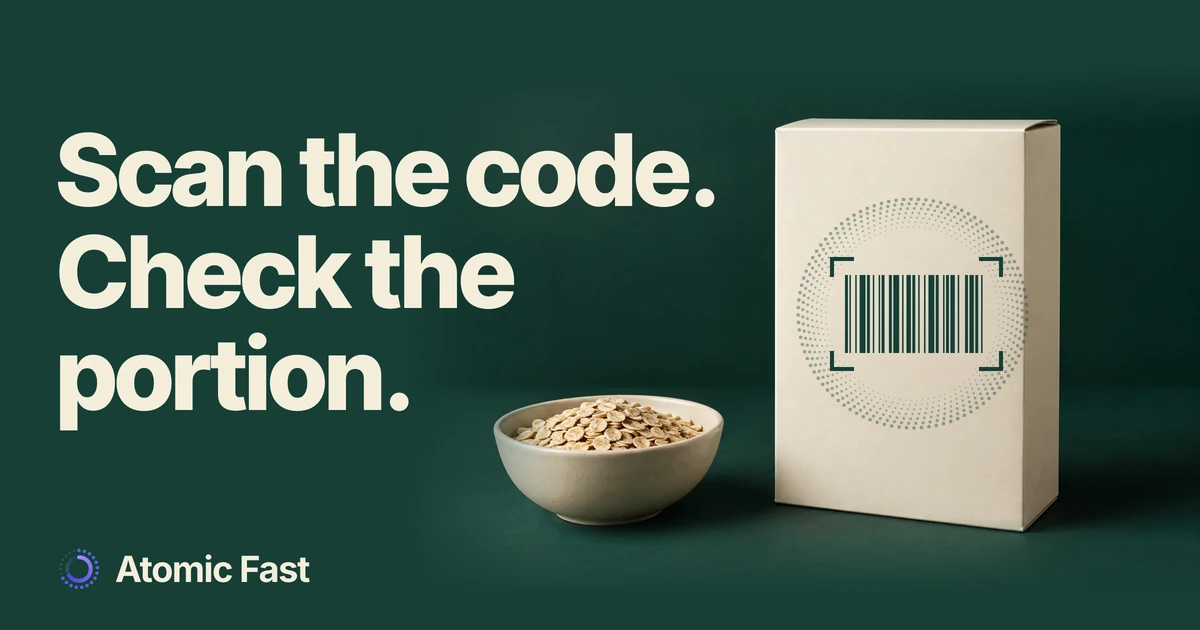
You point the camera at a cereal box and a product appears. That saves some typing, but there are two checks left: does the result match your package, and does the amount match what you ate?
Barcode lookup finds a food record. It doesn’t measure the contents of your bowl. The final save step also works differently on iPhone and Android, so it’s worth knowing when your scan becomes a logged meal.
The short version
Open Log Food & Water, reveal More options and choose Scan Barcode. Check the product against its package. On iPhone, Add to Meal opens a review screen; adjust the serving and time, then tap Log Meal. On Android, Add to Meal saves directly, so open the saved meal to check its portion and timestamp. Barcode lookup is free and doesn’t use an AI scan.
Before you scan
These steps use English labels after sign-in and initial setup. Have the package available, allow camera access and keep an internet connection available for a new product lookup. The app can reuse a locally stored match, but that doesn’t make barcode lookup a generally offline feature.
Check the date shown in Meals, especially if you’re entering yesterday’s food. The logging flow can inherit the selected date. You don’t need to start a fast to log a meal.
Use Scan Barcode for the package’s product code. Scan Label is a different method that analyzes a photograph of the nutrition panel using AI. If you’re choosing between input methods, our meal-logging guide explains the alternatives.
1. Open the barcode scanner
On iPhone, tap the Log tab and drag the logging sheet upward to reveal its extra actions. On Android, tap the floating Log or + button, then More options. Choose Scan Barcode.
Allow the camera permission when prompted. Keep the barcode visible, reasonably flat and free from glare. The scanner watches for a code continuously in barcode mode; you don’t need to take a food photograph or press a shutter button.
Wait for the lookup result. If the camera has been denied permission, restore Atomic Fast’s camera access in your phone’s app settings before trying again. Android also offers Grant Permission in the scanner. A damaged or partly covered code may need repositioning before it can be read.
2. Check the product and nutrition basis
Compare the returned food with the package you actually have. A similar name isn’t enough when the flavour or formulation differs. Check the nutrition against the printed label as well. An online record can be incomplete or out of date, and missing macro values can appear as zero; that doesn’t establish that the food contains none.
On iPhone, the scan result shows calories per serving when the app has a serving size. For a fresh lookup with no usable serving size, it shows calories per 100 g and the message No serving size on file. Adjust the amount on the next screen. A previously stored match may not show that warning, so check the amount even when there is no message.
On Android, the scan result’s calorie and macro numbers come from the product’s per-100 g values, although the result currently doesn’t label that basis. Add to Meal saves the default serving instead. Those two sets of numbers can therefore differ without a second food being added.
For example, a fictional food has 400 kcal per 100 g. A 30 g portion, about 1.1 oz, contains 120 kcal on that same basis. The barcode doesn’t establish that you ate 30 g, 100 g or the whole box. Use the amount you can verify, and compare values for the same quantity.
Illustrative numbers · one fictional food
Same food.
Different amount.
Database basis
100 g ≈ 3.5 oz
400 kcal
Example portion
30 g ≈ 1.1 oz
120 kcal
A barcode finds the food record.
You still check how much you ate.
When a usable serving size is missing, the lookup starts from 100 g. Treat that as a value to review, not a detected package size or a suggested portion.
There is also a current limitation for liquids: barcode serving conversion treats millilitres as the same number of grams. That isn’t a valid density conversion for every product. Don’t trust an oil or syrup portion just because the displayed number looks plausible. If the quantity and nutrition basis don’t line up, use a checked manual entry instead.
3. Save using the steps for your phone
On iPhone: review, then log
-
Open the review screen. Tap Add to Meal on the matching result. This opens a confirmation screen; it hasn’t saved the meal yet.
-
Adjust the portion. Tap the food row to expand Serving. Its minus and plus controls change the amount in 10 g steps, with nutrition recalculated proportionally. Check the displayed quantity and totals rather than assuming one press represents one package serving. Your display preference may show the amount in oz.
-
Check the time and save. Set Meal Time to when you ate, then tap Log Meal. If a fasting warning appears, read the available actions: Log Meal Anyway saves without ending the fast; Break Fast & Log ends the active fast at the current time and logs the meal. Changing Meal Time does not change that fast-ending time. For backdated records, check the timer separately rather than assuming a warning will appear.
On Android: add, then check the saved meal
Tap Add to Meal only when you’re ready to record the matching product. This action saves a single-item meal with the default serving and logging timestamp. It doesn’t open iPhone’s serving-confirmation screen.
Return to Meals on the selected day and open the saved entry. Check the amount and total calories. Use its menu’s Edit Meal Items to correct the portion and Edit Meal Time to correct when you ate. Complete the edit and check the record again.
The barcode save doesn’t show the same fasting warning or end an active fast on Android. Manage that timer separately if needed. Also look for the saved entry before scanning again if you’re unsure whether the first save completed; repeating the action can create another meal.
One button, different next steps
When does the scan
become a meal?
iPhone
Review before saving
Add to Meal
Opens the confirmation screen.
Check serving + time
Adjust the amount and Meal Time.
Log Meal
Complete any confirmation shown.
Android
Check after saving
Add to Meal
Saves a single-item meal immediately.
Open the saved meal
Check its amount and timestamp.
Edit if needed
Edit Meal Items or Edit Meal Time.
On Android, the barcode save does not end an active fast. Check that timer separately.
If the lookup doesn’t work
Product not found: check your connection and try again. This result can mean there is no usable product record, but a lookup failure or insufficient nutrition data can lead to the same outcome. It doesn’t prove the barcode itself is invalid.
The wrong product appears: don’t log it as a substitute. Use Scan Another to try a different code, or return to Search food database and look for the correct food.
Too many scans just now: wait a minute before retrying. This is a temporary barcode-request limit, separate from the AI allowance. Taking another photo or upgrading isn’t the required recovery step.
Nothing reliable matches: if you have a clear label, create a custom food using values that all refer to the same serving. That guide explains which units to enter and how to add the saved food to a meal. Don’t invent nutrition to get an entry through.
Frequently asked questions
Does barcode scanning require Atomic+ or use an AI scan? No. Barcode lookup is available without Atomic+ and doesn’t request an AI analysis. Photo analysis, nutrition-label scanning and typed meal descriptions are separate methods with their own allowance.
Is Scan Barcode the same as Scan Label? No. A barcode looks up a product record; a label scan analyzes the photographed nutrition panel. Neither establishes how much you ate. The serving still needs checking.
Why did the calories change after Add to Meal on Android? The scan result shows per-100 g nutrition, while the saved meal uses the default serving. Compare both amounts with the package. For the fictional example above, 400 kcal per 100 g becomes 120 kcal for 30 g. If the saved amount is wrong, edit the meal items.
Can I use one scan for an entire mixed meal? The barcode identifies that packaged food. Android saves it as a single-item meal, so it won’t include milk, toppings or other foods automatically. For combinations you eat regularly, save and reuse a meal after checking all its items and portions.
Sources and product notes
Product information checked: October 30, 2026.
Product verification: We checked the iPhone and Android logging menus, camera permissions, barcode lookup, serving conversion, confirmation and direct-save paths, and saved-meal editing against current code and product documentation. This establishes supported controls and saved results. No mobile-device walkthrough or nutrition measurement was performed.
Lookup limitations: New product lookups use Open Food Facts; an existing local match can be reused. The app’s current Android result displays per-100 g numbers without a basis label, while saving the default serving. Unknown servings start from 100 g, and liquid serving conversion assumes 1 ml equals 1 g. These limitations are reflected in the steps above. Detailed source paths and the checked revision are retained in the editorial review record.
Illustrative values: The 400 kcal and 120 kcal figures explain proportional arithmetic only. They are not measured nutrition for the pictured package, a suggested serving or a health target. The cover is conceptual artwork, not a product or app screenshot.
Keep your food records in Atomic Fast on the App Store or Google Play.
Try Atomic Fast free
Track your fasts, log your meals, and see how they affect each other, on iPhone and Android.


 Scan to download