Edit or Remove Saved Meals in Atomic Fast
Edit a reusable meal in My Meals, check quantities and nutrition, save the changes or remove the template. Learn what happens to meals you've already logged.
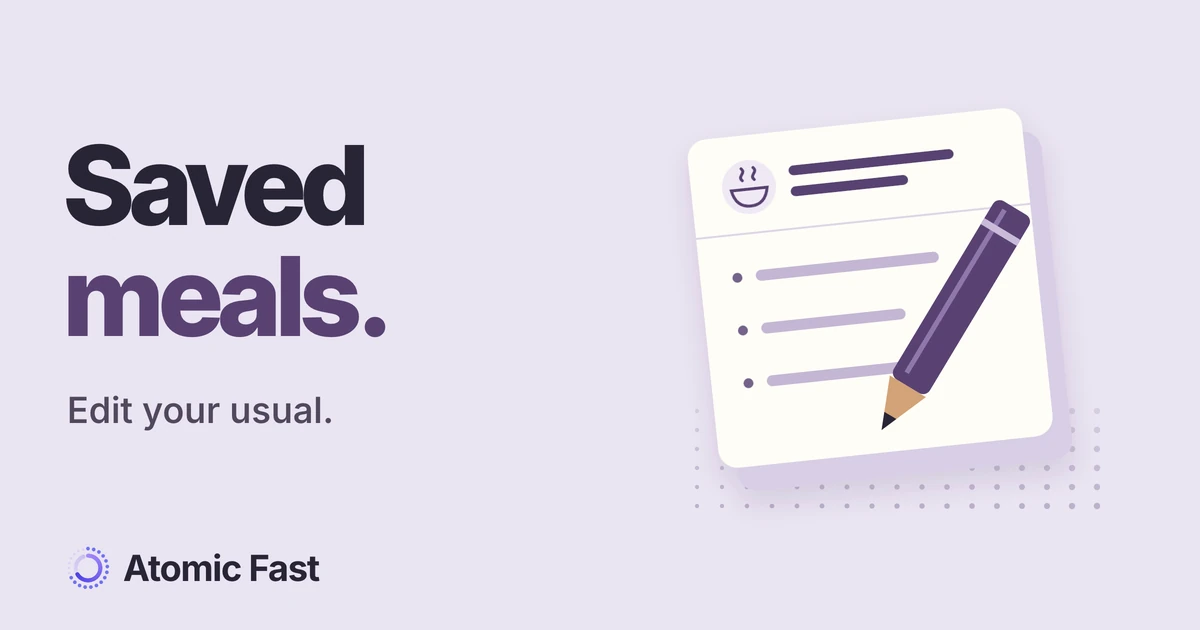
Your usual breakfast used to include toast. Now it doesn’t, but the saved combination still adds toast whenever you reuse it. You can change that combination in My Meals without removing yesterday’s breakfast from your meal history.
The important part is opening the reusable meal itself. The plus beside it serves a different purpose: adding its foods to a new meal.
The short version
Open Log → Search food database → My Meals, then tap the saved meal’s name or row to open Edit Meal. Make your changes and tap the top Save. To remove a template, swipe its row for deletion; Android asks you to confirm. These actions affect the reusable template, not meals already logged. Quantity and nutrition fields need separate checks, as explained in the product notes.
Before you edit: choose the right record
Saved meals are available on the free tier on iPhone and Android. Start with initial app setup completed and a meal already saved in My Meals. This editor doesn’t require an AI scan or a photo. If you’re still entering your first meal, start with how to log a meal.
A saved meal is a reusable collection of foods and their stored values. A logged meal records an occasion when you ate. Editing the template changes what you can add from it next time; it doesn’t rewrite that earlier occasion.
For example, remove toast from your saved breakfast if future breakfasts should omit it. If you actually ate toast yesterday, yesterday’s record should still include it. If yesterday’s entry itself was wrong, open that logged meal instead. A wrong timestamp is another separate fix: change the time on a logged meal.
01 · Two separate records
Change your usual meal.
Keep yesterday's record.
My Meals
Your template
- Eggs
- Coffee
ToastRemoved
Next time you add it:
eggs + coffee.
Meal history
Logged meal
- Eggs
- Coffee
- Toast
Already logged:
all three remain.
Editing or deleting the template doesn't edit the logged meal.
1. Open the saved meal, then check its name
- Open Log. On iPhone, use the Log tab; on Android, use the floating Log button or its collapsed + control.
- In Log Food & Water, choose Search food database.
- Select My Meals.
- Tap the saved meal’s name or main row, rather than its separate + button.
- Check that the screen title is Edit Meal and that the listed foods belong to the template you intended to change.
Edit the name under Meal Name if it no longer describes the combination. A useful name tells you what you’ll get when you select it again. In the breakfast example, “Eggs and coffee” is clearer than leaving a name that mentions toast.
Renaming here doesn’t rename an old meal log. You also can’t save a blank name or a template with no food items. If your aim is to remove the entire template, use the deletion steps below.
2. Change the foods and review every value
Tap a food item to open its editor. Both platforms provide Quantity, Calories, Protein, Carbs and Fat fields. The existing unit is shown beside the quantity.
Changing Quantity does not automatically scale the nutrition fields in this editor. For a hypothetical example, changing a stored quantity from 100 g to 150 g changes that quantity field. It doesn’t multiply the calories or macros by 1.5. Enter the values appropriate to the intended amount and check each field before saving.
There’s another reason to review the whole item: the editor initially displays quantity and macro fields as whole numbers. If the saved entry had decimals, re-enter any precision you need before tapping Save. Saving an item can otherwise keep those displayed whole-number values.
Micronutrients aren’t editable in this item sheet and aren’t recalculated by changing quantity. If you need a fully recalculated portion or a different ingredient, don’t assume this small editor has done that work. Review the food and nutrition in the meal-building flow before saving a replacement combination. For a reusable individual ingredient, create a custom food in My Foods.
To remove one ingredient, swipe its row in Edit Meal and use the delete action. Keep at least one item if you intend to save the remaining combination. On iPhone, Add Food Item also lets you search for another food. The Android saved-meal editor doesn’t offer that add-item control; adding foods to a new meal and saving the resulting combination is a separate route.
After editing an item’s fields, tap Save in that item editor. You’re now back at the meal draft. The template still needs the top-level Save in Edit Meal.
02 · Save at both levels
An item edit is
one step of the save.
Review the item
Check quantity and nutrition separately.
Quantity + unitCalories + macrosChanging quantity doesn't scale the other values. Micronutrients stay as stored.
Save the item
Return to the meal draft with your item changes.
The reusable template hasn't been saved yet.
Save the meal
Use the top Save in Edit Meal, then reopen the template to check the result.
Leaving the meal draft before the final Save discards those draft edits.
3. Update the photo if it helps, then save
A photo is optional. On iPhone, tap the photo area and use Choose from Library to select a replacement, or Remove Photo to clear the existing image. On Android, tap the photo area to choose an image with the system picker; the photo’s delete control removes it from the draft.
Choose an image that helps you recognize the combination. Changing this photo doesn’t analyze the food or update its nutrition, so finish the item checks separately.
- Review the meal name, remaining foods and displayed totals.
- Tap Save at the top of Edit Meal.
- Return to My Meals and reopen the same template.
- Confirm that your intended name, items and photo were retained.
An edited template may move toward the top of My Meals because the list uses its updated time. Reopening it is a better check than looking only in its old position.
To leave without applying the meal draft, use Cancel on iPhone or the editor’s back control on Android before the top-level Save. Even if you’ve saved an item inside the draft, that isn’t the final template save. If saving reports an error, keep the editor open, review the message and try again; verify the stored result before assuming the change succeeded.
Remove a template you no longer use
Return to My Meals and identify the correct row by its name and contents. Swipe the row to reveal or perform its delete action.
On iPhone, the trash action removes the saved meal without another confirmation in this flow. On Android, review Delete Saved Meal? and choose Delete to continue or Cancel to keep it. Don’t rely on an undo step.
Check that the template has disappeared from My Meals. Its previously logged meals remain in your history. Deleting the template is therefore useful for an obsolete shortcut; it isn’t the way to remove an accidental meal log or erase all meal records.
FAQ
Why did tapping the plus open a meal builder? The plus adds the saved foods to a new meal. Return to My Meals and tap the name or main row to edit the template itself. Check the builder before logging anything you didn’t intend to add.
Will a meal already open in the builder update when I edit its template? Don’t expect it to. Adding a saved meal copies its stored items into the builder. Start again from the revised template if you want those changes in a new meal, then review before logging.
Why didn’t the calories change when I changed Quantity? The saved-item editor treats those fields independently. Review Calories, Protein, Carbs and Fat yourself. Micronutrients are retained, so this isn’t a complete portion recalculation tool.
Why is Save unavailable? Check that the meal has a nonblank name and at least one food item. To remove the whole template, leave the editor and delete its My Meals row instead.
Can I recover a deleted template from an old meal? If the logged meal still contains the combination you want, open it and use Save as My Meal to create a reusable template again. Review its items first; this creates a saved combination from that record rather than undoing the deletion.
Sources and product notes
Product information checked: November 22, 2026.
Product verification: Reviewed both platforms’ logging entry points, My Meals rows, saved-meal editors, English labels, item-copy behavior, save/delete handlers and local storage models. The saved-meal entitlement and relevant release documentation were also checked. This was source verification, not a mobile runtime walkthrough or confirmation of a particular store build. Detailed paths and revision are retained in the editorial record. The instructions cover template maintenance, not automatic nutrition recalculation or historical log repair.
Keep the combinations you actually reuse within reach. Atomic Fast is available on iPhone and Android.
This article is for general education and isn’t medical advice. If you’re pregnant, managing a health condition, taking medication, have a history of disordered eating, or are considering fasts longer than 24 hours, talk to a healthcare professional first.
Try Atomic Fast free
Track your fasts, log your meals, and see how they affect each other, on iPhone and Android.


 Scan to download