Read Your Day in Atomic Fast's Timeline
Find today's fasts, meals and water in Atomic Fast. Open individual events, understand grouped icons and overnight fasts, and check why an entry may be missing.
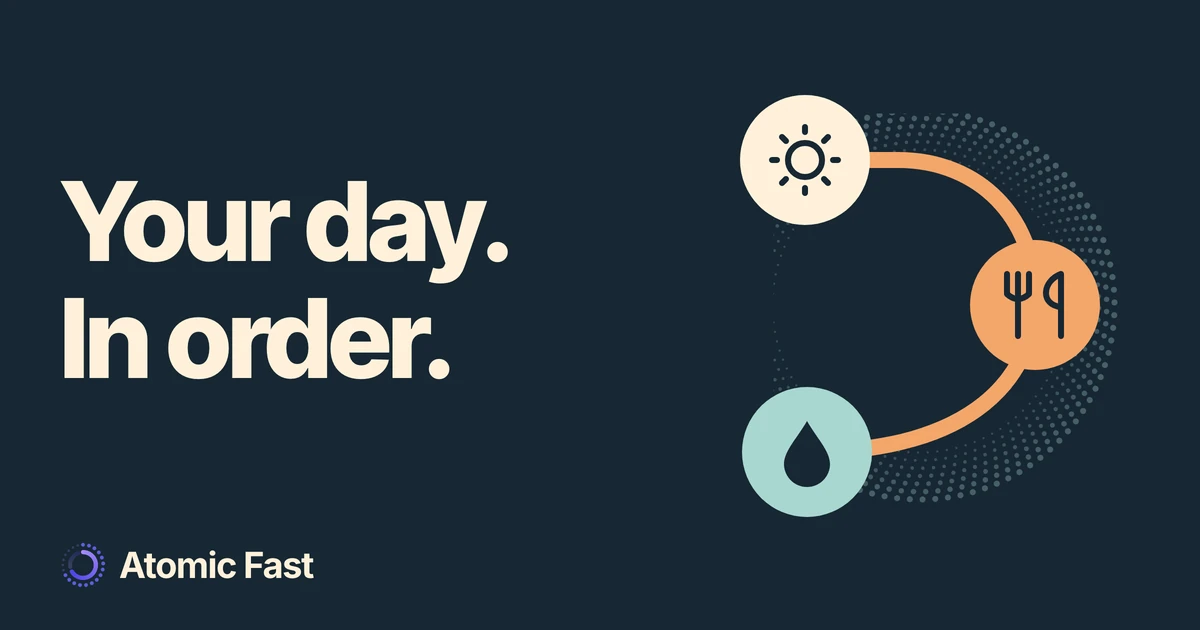
You ended a fast, logged lunch and added a glass of water. To check the order without opening each record separately, look for Today’s Activity on the Today tab. Its compact row brings those events together; opening it gives you their individual times.
The date matters. This list answers what is recorded for today. A fast can still be running even when its start is absent from the row, because that start happened yesterday.
The short version
On Today, tap Today’s Activity or its Details area to open Today’s Timeline. The list puts today’s recorded fast starts, fast ends, meals and water in time order. Nearby events may share a group of icons in the compact card, but the detail list separates them. It is a viewing tool: use the original meal, water or fasting record to make a correction, and use history for earlier dates.
Open today’s individual events
The route is the same on iPhone and Android. Reading the timeline does not require Atomic+ or use an AI scan. You need a qualifying event dated today for the card to appear; an empty card is hidden.
- Open the Today tab. Scroll below the main fasting controls to find Today’s Activity. Its position varies with whether a fast is active or scheduled.
- Read the compact row, scrolling it sideways if necessary. It can contain fasting, meal and water icons, with a short summary below.
- Tap the card’s header or Details area. Today’s Timeline opens with events listed from earliest to latest.
- Check the time beside each entry. A meal can show its recorded calories, and a water entry shows its recorded amount. Fast entries distinguish Fast started from Fast ended.
- Tap Done to return to Today. Opening or closing this list does not start, end or edit a fast.
If you were expecting lunch but have only selected food in the meal builder, finish saving the meal first. The meal-logging walkthrough explains that separate save step. The timeline reads the resulting records; it does not save an unfinished meal for you.
Why several events can look like one group
The compact card groups events when the gap between each event and the next is less than 30 minutes. That keeps the row from filling with almost identical timestamps. The grouped icons can omit the labels and times visible on a single-event chip, so open Details when you need the exact sequence.
For example, a fast ending at 10:00 am, a meal at 10:15 am and water at 10:40 am form one group. The gaps are 15 minutes and 25 minutes. The first-to-last span is 40 minutes, but grouping follows consecutive gaps, so all three still belong together. A gap of exactly 30 minutes starts another group.
Reading the compact row
One group.
Three separate events.
Grouped icons
Each consecutive gap is under 30 minutes.
Open Details
10:00 am
Fast ended
First event
10:15 am
Meal logged
15 minutes later
10:40 am
Water logged
25 minutes later
The records stay separate, even when the icons sit together.
Grouping does not merge the underlying records. The expanded list retains each event’s own timestamp and details. If your water icon is tucked beside a meal icon, the water entry has not turned into part of that meal.
What the summary tells you
The card summarizes the events included in today’s list. Its meal count and calorie total come from logged meals; its water total adds recorded water amounts. These figures cannot account for food or drinks you did not enter.
The Fasted label means the list contains a fast-start or fast-end event. It is not a duration total, a completed-goal badge or a streak count. Check the main timer for the running fast and the saved session for its full duration.
There is also a display detail to expect: the timeline currently shows water in ml on both platforms, even if other water controls use fl oz. For reference, 250 ml is about 8.5 fl oz and 500 ml is about 16.9 fl oz. Those are volume conversions, not suggested drinking amounts. The water-tracking guide covers adding water and reading its separate daily total.
Why an overnight fast may show only its end
Today’s Timeline includes events whose timestamps fall between the current local day’s midnight and the next midnight. It does not repeat yesterday’s fast-start event just because that fast continues into today.
Suppose a saved fast began yesterday at 8 pm and ended today at noon. On an ordinary day without a clock change, that is a 16-hour session. Today’s list includes the noon Fast ended event. The 8 pm start belongs to yesterday, so it is absent here.
Across midnight
One fast.
Two event dates.
Yesterday
8 pm
Fast started
Outside today's list
Today
Noon
Fast ended
Included in today's list
The full saved session spans both dates.
Today's event list and the complete session answer different questions.
The same rule explains a less obvious case: if a fast started yesterday and is still running, it may contribute no event to today’s list yet. With no meals or water recorded today either, the card can be hidden while the main timer continues running. An absent card is not proof that the fast stopped.
To inspect the complete session or an earlier date, use fasting history and its date rules. Today’s Timeline has no past-date picker. Changing a correct start time just to make it appear here would change your record unnecessarily.
Check the time on a scheduled start
A fast scheduled to start later today can already contribute a start marker to the timeline. Read its displayed time alongside the main timer’s scheduled state. The marker alone does not establish that fasting has begun.
This is another reason to treat the list as a sequence of recorded timestamps. It does not certify that a goal was reached or tell you what is happening inside your body. The main fasting controls remain the place to manage the session.
If an entry seems to be missing
First open Details: the entry may be inside a compact group. Then check the original record and its saved date. A meal logged for yesterday belongs to that date, even if you entered it today. Deleted records are excluded, and abandoned fasts are not included as active or completed sessions.
If the time is wrong, correct the original record using its own controls. The timeline’s detail rows do not open an editor. If the time is right, leave it alone; this view’s date boundary may explain the difference.
On Android, there is one additional limit when the app stays open across midnight: the meal and water queries can retain the previous day’s date range. Fully close and reopen the app to reload the day before assuming a saved entry has disappeared. Switching tabs may leave the same screen state alive. Do not delete app data or log a duplicate to repair a display problem.
FAQ
Can I use the timeline without Atomic+? Yes. Viewing this card and its details is part of the free core tracking experience. Reading saved events does not run an AI analysis.
Why is Today’s Activity absent while my fast is running? The card needs an event dated today. A fast that began yesterday and has not ended today may have no event to contribute. Check the main timer before changing any record.
Does opening an event let me edit it? No. Today’s Timeline displays the entries and their times. Close it with Done and use the relevant fasting, meal or water controls for corrections.
Can I see yesterday or compare several days here? No. This list is limited to today. Use the separate history and day-specific tracking views for older records. It also does not track hunger or explain why you felt a particular way.
Sources and product notes
Product information checked: November 8, 2026.
Product verification: We checked the iPhone and Android Today screens, timeline event builders, grouping rules, detail views, English labels and free-tracking documentation. The guide describes implemented controls and records, not a device walkthrough. Android’s retained date-range limitation and the timeline’s current ml formatting are included above. Both diagrams use illustrative times and records, not screenshots, health measurements or recommended schedules. Detailed source revisions and paths are retained in the editorial review record.
Atomic Fast is available on the App Store and Google Play.
Try Atomic Fast free
Track your fasts, log your meals, and see how they affect each other, on iPhone and Android.


 Scan to download