Connect Atomic Fast to Apple Health on iPhone
Connect Atomic Fast to Apple Health on iPhone, choose read and write permissions, and check missing data without assuming every empty field means access was denied.
Your sleep data can be visible in Apple Health while a field in Atomic Fast is still empty. Before reconnecting everything, check which data the app can read, which records actually exist and whether the app has refreshed.
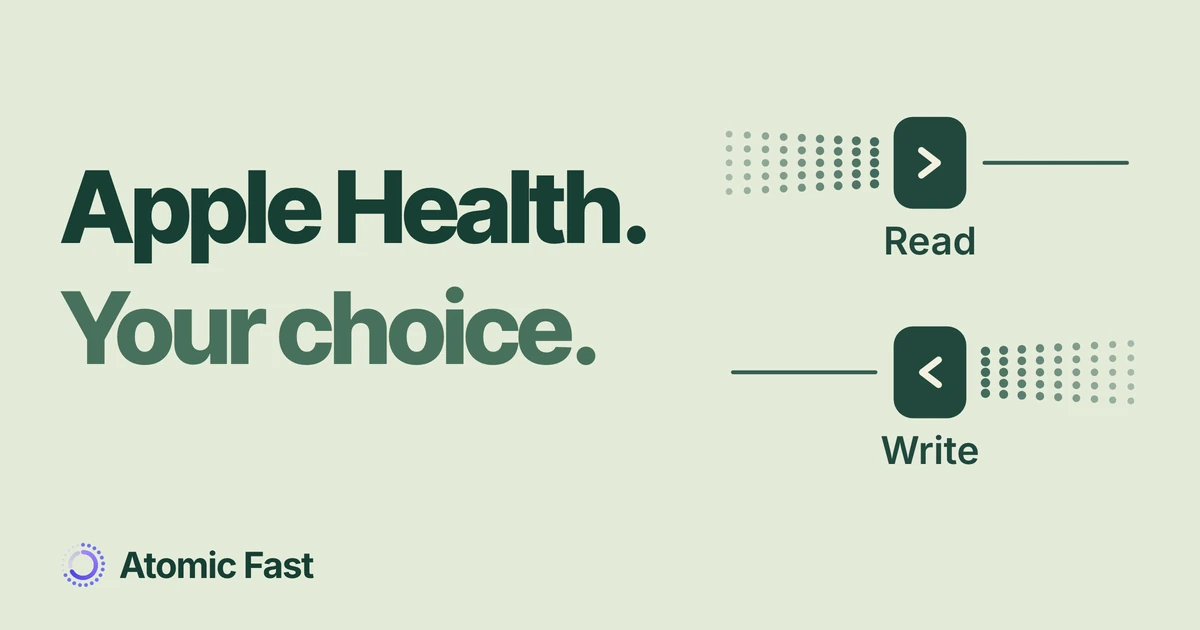
Apple Health access has more than one switch. You can let Atomic Fast read a particular type without allowing it to write that type, and you can leave other categories off.
The short version
In Atomic Fast on iPhone, open Me → App Permissions, then tap Connect beside Apple Health. Choose the data access you want in the system permission screen. After setup, the row offers Sync or a permission-recovery action. Connected means the app completed its connection flow; it doesn’t confirm that every individual data type is accessible. The product notes explain the verification behind these steps.
Before you connect
Start with Atomic Fast installed and its initial setup completed on your iPhone. These instructions use English labels. Android uses a separate Health Connect integration; the Apple Health controls below don’t apply there.
Health integration does not require Atomic+. It is also separate from the AI meal-scan allowance. Connecting isn’t a food scan, and you don’t need to scan a meal to finish setup.
Decide what you want to share before accepting the request. If your aim is to bring an existing sleep record into Atomic Fast, look for sleep read access. If you want supported nutrition entries from Atomic Fast to appear in Health, review the relevant write permissions. You don’t have to enable unrelated types just to make the permission list look complete.
1. Open the Apple Health connection
- Open the Me tab in Atomic Fast.
- Scroll to Permissions and tap App Permissions.
- Find Health Data and the Apple Health row.
- Tap Connect if this is your first connection. Review the system request and confirm your choices there.
- Return to the same row to check its state.
If you already see Connected and Sync, use that existing connection. Check Permissions with Re-enable means the app wants you to review access; the recovery steps below cover that state. Neither state requires creating another account or deleting the app.
2. Choose what can move in each direction
Read access lets Atomic Fast use supported records already in Health. Its request includes sleep, steps, active energy, exercise minutes, resting heart rate, heart-rate variability and body measurements, among other supported categories. A permission request doesn’t mean your phone or watch has recorded every category.
Write access lets Atomic Fast add supported values to Health. Requested write types include weight, height, water, calories and nutrients such as protein, carbohydrate and fat. Granting a type allows that operation; it doesn’t make every existing app record appear in Health immediately.
Choosing access
Two directions.
Separate choices.
Read
Sleep, steps and other supported readings
Uses existing records when that type is allowed.
Write
Supported body, water and nutrition values
Adds permitted values through supported app actions.
Allowing one direction does not enable the other.
For example, allowing sleep reads doesn’t also authorize water writes. Choose each direction for the task you want. Apple documents these as separate permissions for each data type.
If you allow body-measurement reads, a later sync can update the app’s profile weight or height from Health. Check those source measurements if a profile value changes unexpectedly. Don’t correct the same measurement independently in two places before checking where it came from.
3. Refresh and check a specific result
In Me → App Permissions, tap Sync when it is available. The app checks access before refreshing its health data. The first sync attempts to gather recent history, so a newly connected app may have more than today’s readings to process.
Use one record you can identify in Health to check the result. Compare the type and date, rather than expecting every screen to fill at once. A recent sync timestamp tells you when the sync ran; it isn’t a receipt for every requested category.
There are also boundaries between health data and meal logs. Connecting doesn’t import meals from other apps as named entries in Atomic Fast’s Meals list. It doesn’t automatically export every meal you logged before connecting, either. Keep using the meal-logging flow for records you want in that list.
Water has its own entry-path and deletion limits. The water-tracking guide explains those details; don’t assume a water total in one app must mirror the other.
4. Change permissions in the Health app
You can revisit your choices after the first request. Apple’s current instructions for app access use this route:
- Open Health on your iPhone.
- In Summary, tap your picture or initials.
- Under Privacy, open Apps, then select Atomic Fast.
- Review the read and write controls for the types you intend to share.
- Return to Atomic Fast and use Sync when it is available.
If Atomic Fast isn’t listed, return to App Permissions in Atomic Fast and start Connect first. Health lists apps that have requested access.
Within Atomic Fast, Re-enable or the Re-enable Permissions alert action retries the read-access request. It may lead to instructions instead of another system permission screen. Use Health directly to inspect both read and write choices; repeatedly tapping the retry action isn’t a way to force access on.
When data is still missing
Work through the same three checks for the particular value you expected:
When a field is empty
Follow one record.
-
Find the source record
Is the type and date present in Health?
If absent, check the device or app that supplies it.
-
Check that permission
Can Atomic Fast read that specific type?
If off, enable it only if you want to share it.
-
Refresh and compare
Does the matching value appear after Sync?
If still unresolved, note the date, type and app state for support.
An empty result alone cannot prove read access was denied.
No matching record in Health: check the device or app that should have supplied it. Atomic Fast can’t import a reading that isn’t there. Enabling more permissions won’t create a missing sleep record or measurement.
The record exists, but that read permission is off: change that specific permission if you want to share it, then return and refresh. You can keep other categories disabled.
The record and permission both look right: compare dates and the type of value. A daily total, an average and a single measurement are different comparisons. If the mismatch remains, keep a note of the category, date and visible app state for support. Avoid repeatedly adding the same meal or water entry as a sync test.
The app’s Check Permissions warning has a limitation: its access check looks for certain permissions or recent activity/sleep data. A sparse Health history or deliberately limited access can trigger the warning and prevent a refresh even when some access is allowed. Keep your chosen permission boundaries; an unresolved warning is a reason to report the problem, not a requirement to enable unrelated types.
Apple deliberately prevents apps from conclusively distinguishing denied read access from an empty result. That is why neither an empty field nor a connection label should be treated as a complete permission audit.
Frequently asked questions
Do I need an Apple Watch to connect? No. The connection uses Health on your iPhone. Which readings are available depends on the records and sources you already have; connecting doesn’t create data that would otherwise require a device or another source.
Does connecting start a fast or change its goal? No. This flow requests health-data access and refreshes supported records. Starting a fast and choosing its duration remain separate actions.
Is Apple Health access the same as cloud backup? No. These permissions control access to Health data. Atomic Fast’s backup and export options are separate, with their own scope and subscription requirements.
Can I stop sharing a particular category later? Yes. Revisit Atomic Fast’s permissions inside Health and disable the relevant access. Changing a permission should not be treated as a command to erase every previously copied record from either app.
Sources and product notes
Sources checked: November 18, 2026.
Product verification: Reviewed the iPhone Me and Permissions screens, English labels, Health authorization and query handlers, profile updates, nutrition export rules, HealthKit entitlements and subscription documentation. These establish the steps and limitations described here. This was code and documentation verification, not a mobile runtime walkthrough; detailed paths and the source revision are retained in the editorial record.
- Apple iPhone User Guide: Share your data in Health — The app-and-device section supports the Health-app route for reviewing individual access choices. Labels can vary with the installed iOS version.
- Apple Platform Security: Protecting access to user’s health data — Explains separate read/write permissions and why an app cannot conclusively identify a denied read from an empty result. Checked via Apple’s English regional edition.
- Atomic Fast privacy policy — Describes health-data access, local storage, optional backups and other data handling. Permission to access Health should be considered alongside that policy.
Atomic Fast is available on iPhone and Android. This Apple Health setup guide applies to the iPhone app.
Try Atomic Fast free
Track your fasts, log your meals, and see how they affect each other, on iPhone and Android.


 Scan to download