Edit Custom Foods in Atomic Fast
Correct a custom food's serving size and nutrition in My Foods, save with Update, or delete an old entry. Learn which meal records keep their original values.
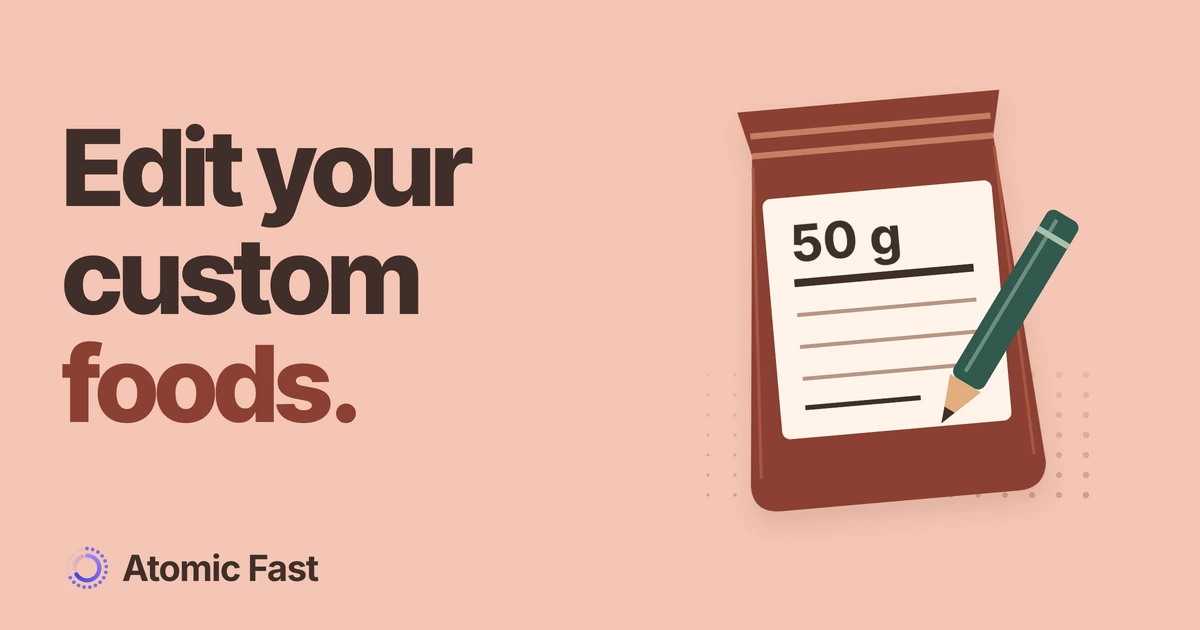
You saved a food with the calories from the wrong column on its label. Now every time you add that food, the starting values need correcting. You can fix the reusable entry in My Foods so your next addition begins with the revised information.
First decide what needs correcting: an old mistake or an entry for a different product. If a new recipe or variety has different nutrition, a separate entry can make the two easier to tell apart.
The short version
Open Log → Search food database → My Foods, then tap the food’s name or main row to open Edit Food. Check its serving size and every nutrition field against the same amount, then tap Update. Use g for solid foods, or ml with a beverage category for drinks, because custom-food input in oz and fl oz has a conversion limitation. Updating or deleting this entry doesn’t revise meals you’ve already logged; the product notes explain the checked boundaries.
Before you change anything
This guide starts with the app set up and a custom food already in My Foods. The manual food tools are available on the free tier and these edits don’t use an AI scan. You don’t need a food photo.
Have the original nutrition label or other reliable values ready. Compare the product name, variety and serving basis with the entry you’re about to edit. If you need a separate food instead, follow the guide to creating a reusable custom food.
My Foods contains your custom entries. It isn’t a way to change every database or barcode result you find in search. My Meals is also separate: it holds saved combinations of foods. Use the saved-meal editing guide when the combination itself needs changing.
1. Open the food’s editor
- Open Log using the iPhone tab or Android’s floating Log button or collapsed +.
- Choose Search food database, then My Foods.
- Tap the food’s name or main row. Its separate + adds it to a meal builder instead.
- Confirm that the title is Edit Food and that you have the right entry.
You can change Food name, Category, the serving, nutrition and optional photo. Renaming a cereal to include its brand can help distinguish it from a similar entry. Keep the category appropriate: a drink entered in ml should use Beverage rather than a solid-food category.
If you opened the wrong food, use Cancel on iPhone or the back control on Android before tapping Update. Opening the editor doesn’t apply a correction by itself.
2. Keep the serving and nutrition together
Under Serving, review Size and Unit. The fields under Nutrition (per serving) must describe that amount. Changing Size alone does not recalculate Calories, Protein, Carbs or Fat in this editor.
Suppose a fictional label gives 400 kcal, 10 g protein, 54 g carbs and 16 g fat per 100 g. If you want the reusable entry to use a 50 g serving, enter 50 g and halve each nutrition value: 200 kcal, 5 g protein, 27 g carbs and 8 g fat. Leaving 400 kcal beside 50 g would make that serving’s energy value twice the intended amount.
Illustrative serving check
Half the amount.
Half of each value.
Label basis
100 g
- Calories
- 400 kcal
- Protein
- 10 g
- Carbs
- 54 g
- Fat
- 16 g
Half-size entry
50 g
- Calories
- 200 kcal
- Protein
- 5 g
- Carbs
- 27 g
- Fat
- 8 g
Enter every revised value yourself. Changing Size doesn't rescale the nutrition fields.
Alternatively, keep Size at 100 g and use the label’s per-100 g values throughout. Choose the basis that is easiest to check; this example isn’t a serving recommendation or a real food’s nutrition.
For now, enter custom-food servings in g or ml. The form offers oz and fl oz, but its save calculation doesn’t consistently convert those inputs before later portion handling. If correcting an entry originally made in ounces, use the label’s gram or millilitre amount and recheck all nutrition for that amount. Changing the unit label alone is not enough. Don’t assume equal numbers of grams and millilitres describe the same amount of every food.
Use at least 1 g or 1 ml: smaller positive sizes are saved as 1 in this flow. Calories must be a positive whole number. Optional Nutrients & Minerals fields include fibre and sugar in grams, and minerals such as sodium in milligrams. Check those units as carefully as the serving.
Blank macros save as zero, while blank optional micronutrients remain unavailable. Don’t clear a known value just to hide it from view. The macro warning can catch some mismatches, but it doesn’t compare your entry with the package or certify its accuracy.
3. Update, then reopen to verify
A photo can help you recognize the food. On iPhone, tap the photo area and choose Choose from Library to replace it, or Remove Photo to clear it. On Android, the photo area opens the system picker and the image’s remove control clears it. These are reference images; selecting one here doesn’t read its nutrition label.
- Review the name, category, serving unit and all entered numbers.
- Tap Update at the top of Edit Food. This is the editing action on both platforms.
- Return to My Foods and reopen that entry.
- Check that your intended corrections were retained.
If a save error appears, don’t assume the change succeeded. Review the message, retry, then reopen the stored entry. If Update is unavailable, check for a nonblank name, a positive serving size and positive whole-number calories. This form doesn’t support a zero-calorie custom food; don’t invent calories to enable the button.
Calories can also change slightly on reopening because storage and display use whole-number calorie calculations. Compare the result with your source label, particularly after changing the serving basis. A saved number is still an entered estimate, not a measurement of the food.
What happens to meals already using the food?
A logged meal holds its own copy of the food’s name, amount and nutrition. Updating the My Foods entry changes what you add from it next time. It doesn’t go back through your meal history to repair earlier copies.
The distinction matters when you discover a typo. Fix the reusable food first to prevent repeating it. Then, if an earlier log was also wrong, open that specific meal and use Edit Meal Items to review it separately. A saved My Meals combination likewise retains its stored item values.
After you tap Update
Where the correction goes
Your reusable source is revised.
Your next addition
Uses the updated food
Add it from My Foods after Update.
An existing meal log
Keeps its own values
Correct that meal separately if needed.
An open meal draft
Keeps its earlier copy
Remove the old item, then add the updated food.
Saved My Meals combinations also keep their stored item copies.
An item already added to a builder is also a copy. To use your revised entry, remove the old item from that draft and add the food again from My Foods. Check for duplicates and review the loaded values before completing the meal. Updating the catalog entry alone doesn’t record that you ate; finishing a meal log is a separate action.
Remove a custom food you no longer need
Return to My Foods, identify the correct entry and swipe its row for deletion.
On iPhone, the trash action deletes the entry without a second confirmation in this flow. On Android, review Delete Food?, then choose Delete to proceed or Cancel to keep it. Don’t rely on an undo action.
Confirm that the food has disappeared from My Foods. Previously logged meals remain, as do separate saved combinations containing their own item copies. Deleting a reusable food therefore clears an obsolete entry; it doesn’t erase your meal history. If the row remains or an error appears, check the result before treating deletion as complete.
Frequently asked questions
Why did the food open a meal builder instead of Edit Food? The separate plus adds a copy to a draft meal. Return to My Foods and tap the name or main row to edit. Review the draft before logging an unintended addition.
Can I change only the name? Yes. Check that the other fields still match your source, then use Update. Renaming the reusable entry won’t rename copies in old meal logs or saved combinations.
Should I overwrite a food when its recipe changes? If both versions may still be used, separate entries with recognizable names can avoid confusion. Use the nutrition for the version you actually have; changing the catalog can’t identify which version was eaten in an older log.
Does replacing the photo calculate new calories? No. The editor saves a reference photo alongside the numbers you enter. Photo or label analysis is a separate logging method.
Can I fix every earlier meal by deleting and recreating the food? No. Existing meal items retain their own data. Check and correct each affected meal separately rather than expecting a replacement catalog entry to rewrite history.
Sources and product notes
Product information checked: November 24, 2026.
Product verification: We reviewed the iPhone and Android logging routes, My Foods filters, food editors, localized controls, update/delete handlers and independent meal-item storage against current code and meal-logging documentation. The monetization documentation and connected entry paths support the free manual-food scope. No mobile walkthrough, app build, nutrition measurement or exact store-version verification was performed.
Limits: Serving and nutrition inputs are independent. Custom-food oz/fl oz input has a conversion limitation; sizes below 1 are clamped to 1. Calories require positive whole numbers and can lose precision during storage and reloading. Omitted macros become zero; optional missing micronutrients stay unavailable. The numeric example is fictional arithmetic. Detailed private source paths and revisions are retained in the editorial review record.
Keep your reusable foods up to date in Atomic Fast on the App Store or Google Play.
Try Atomic Fast free
Track your fasts, log your meals, and see how they affect each other, on iPhone and Android.


 Scan to download